Production and delivery: the shop floor
Everything else in Florio is a promise. This is where the promise gets kept.
The Fulfillment group in the sidebar holds the screens the shop works from: two queues that hold the day’s work, a bench for the person doing it, and the boards that move rented pieces out the door and back again. They are deliberately plain. A designer with wet hands and a florist mid-build should be able to read a screen in two seconds and get back to work.
The through line is that work is a task, and a task moves the order. When an order is taken, Florio raises the work it needs and routes it to a queue. When the person doing the work marks it started or finished, the order’s own stage moves with it. Nobody updates a status twice.
Every section below is a target of the in-product help icon, so the ? on a fulfillment screen brings you straight to the matching heading here.
The production queue
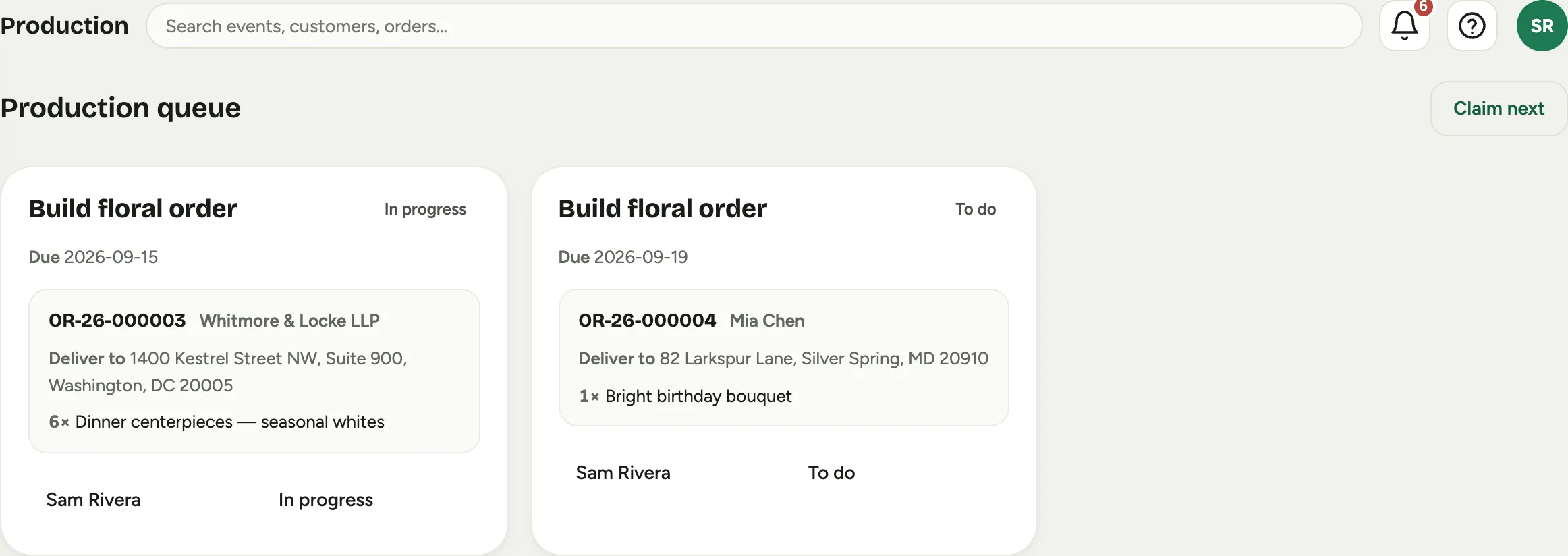
Production is everything waiting to be made. Each card is one Build floral order task, carrying what the bench actually needs: the order number, the customer, where it is going, and the line items to build.
 Screenshot from a demo workspace; data illustrative.
A card shows its status as To do, In progress, Blocked, or Done, the Due date, and who holds it. Claim next hands the top unclaimed item to whoever pressed it, so a florist who finishes early pulls the next job instead of asking. If the order carries a card message, it rides on the card too, because the message is part of the build.
How the queue is fed and who it routes to is set up per queue in Admin, alongside the rest of the task and queue engine.
The delivery queue
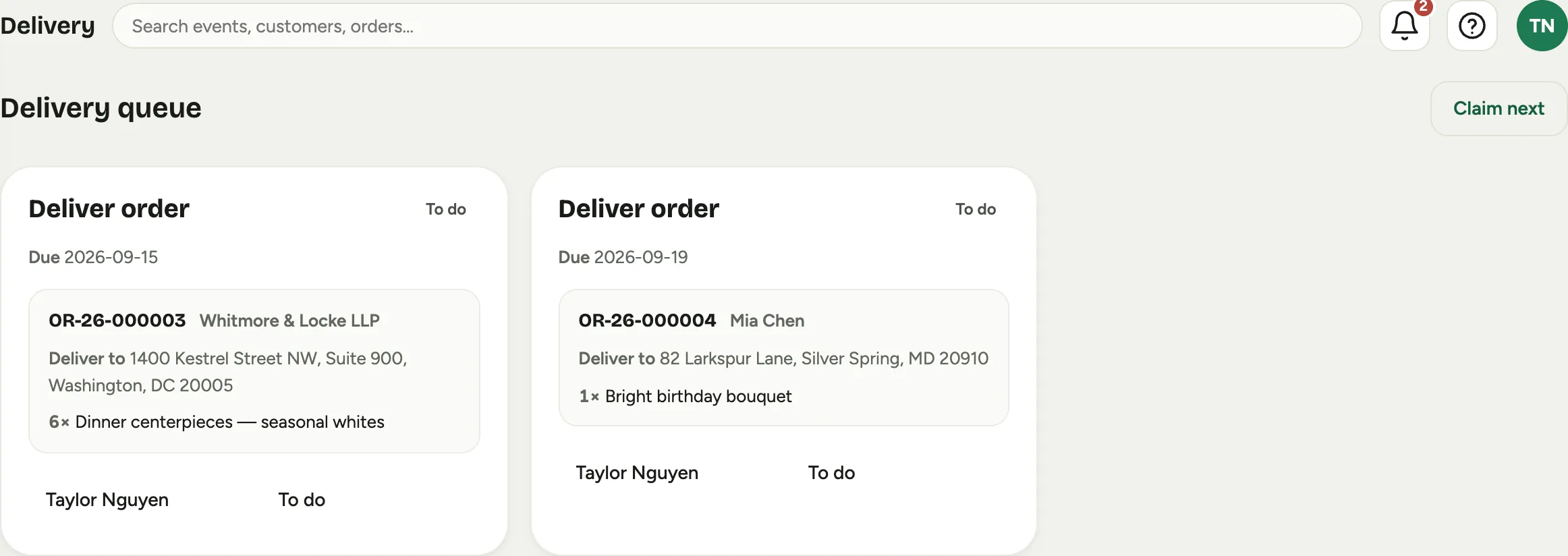
Delivery is the same screen for the road: one Deliver order card per delivery, with the address it is going to and what is in the van.
 Screenshot from a demo workspace; data illustrative.
A card reads Deliver to with the address, or Pickup when the customer is collecting. Working the queue end to end is in Run the delivery queue.
My bench
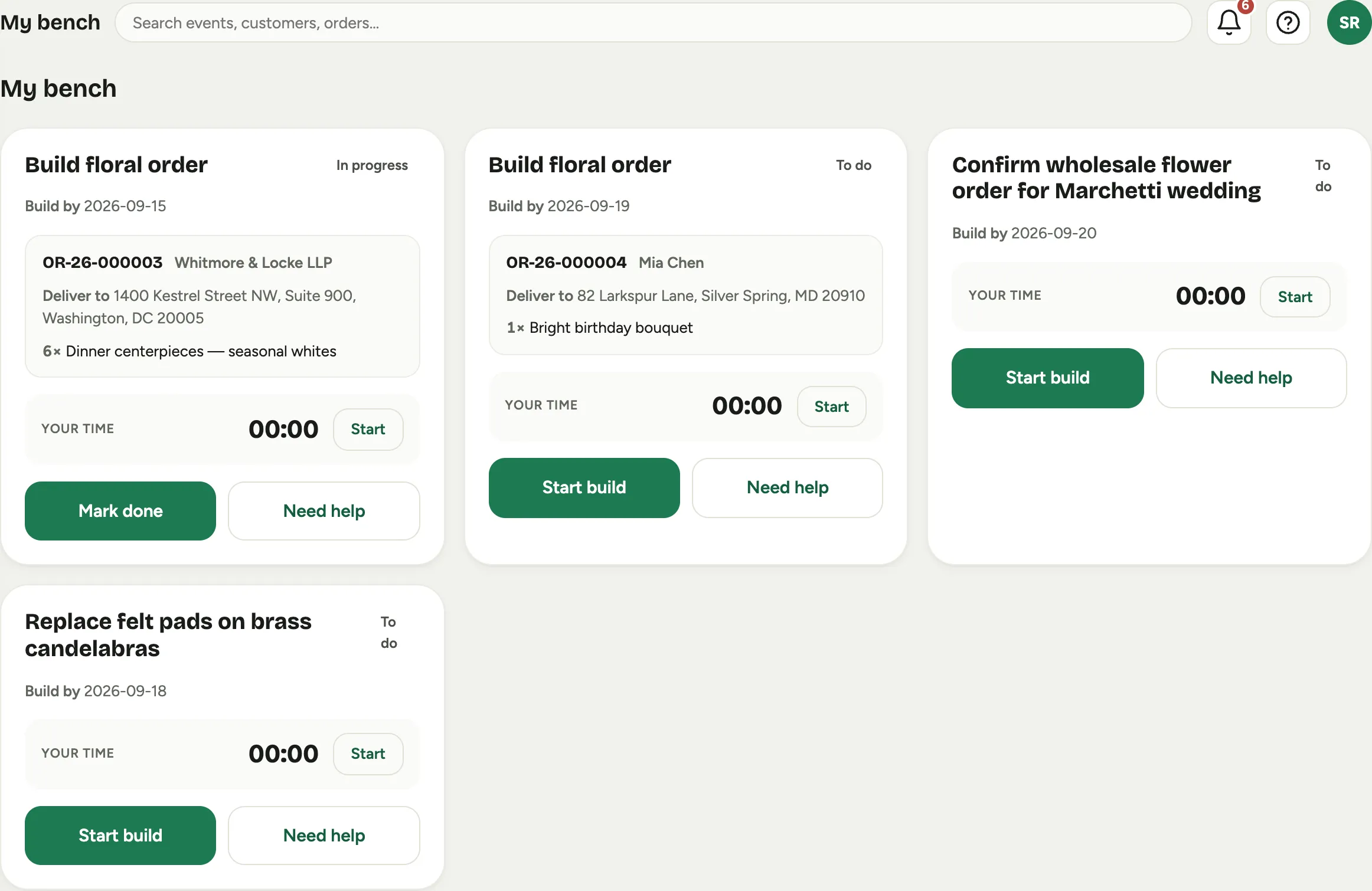
My bench is the same work seen from the other side: not the queue, but the one person’s list. It holds everything assigned to you, order builds and shop tasks together, so a florist has one screen for the day rather than four.
 Screenshot from a demo workspace; data illustrative.
A bench card carries Build by instead of a due date, because that is the question the maker is actually asking, and a Your time timer for pacing a build. The actions are the whole workflow: Start build, then Mark done. Need help flags the job as blocked so a lead can see it without anyone walking the shop, and Resume picks it back up.
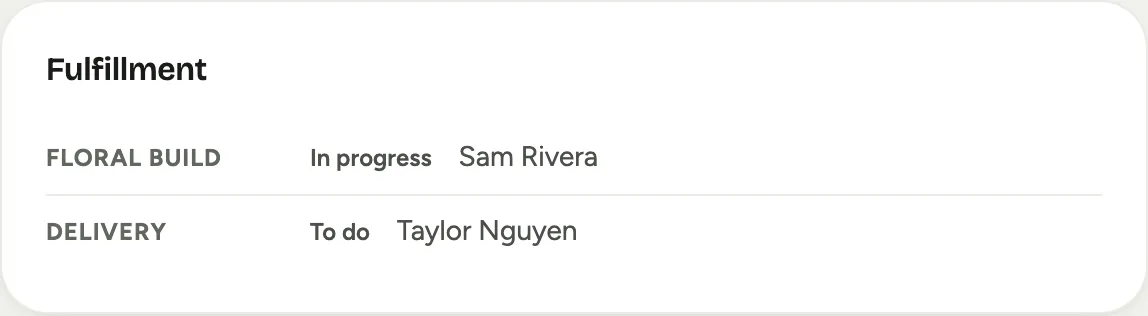
Marking a build done moves the order to Ready, and marking a delivery done moves it to Delivered. The order record shows the same pair on its Fulfillment card, so the office can see where a job stands without interrupting the person doing it.
 Screenshot from a demo workspace; data illustrative.
Working a build is in Build an order on the bench.
Proof photos and signature
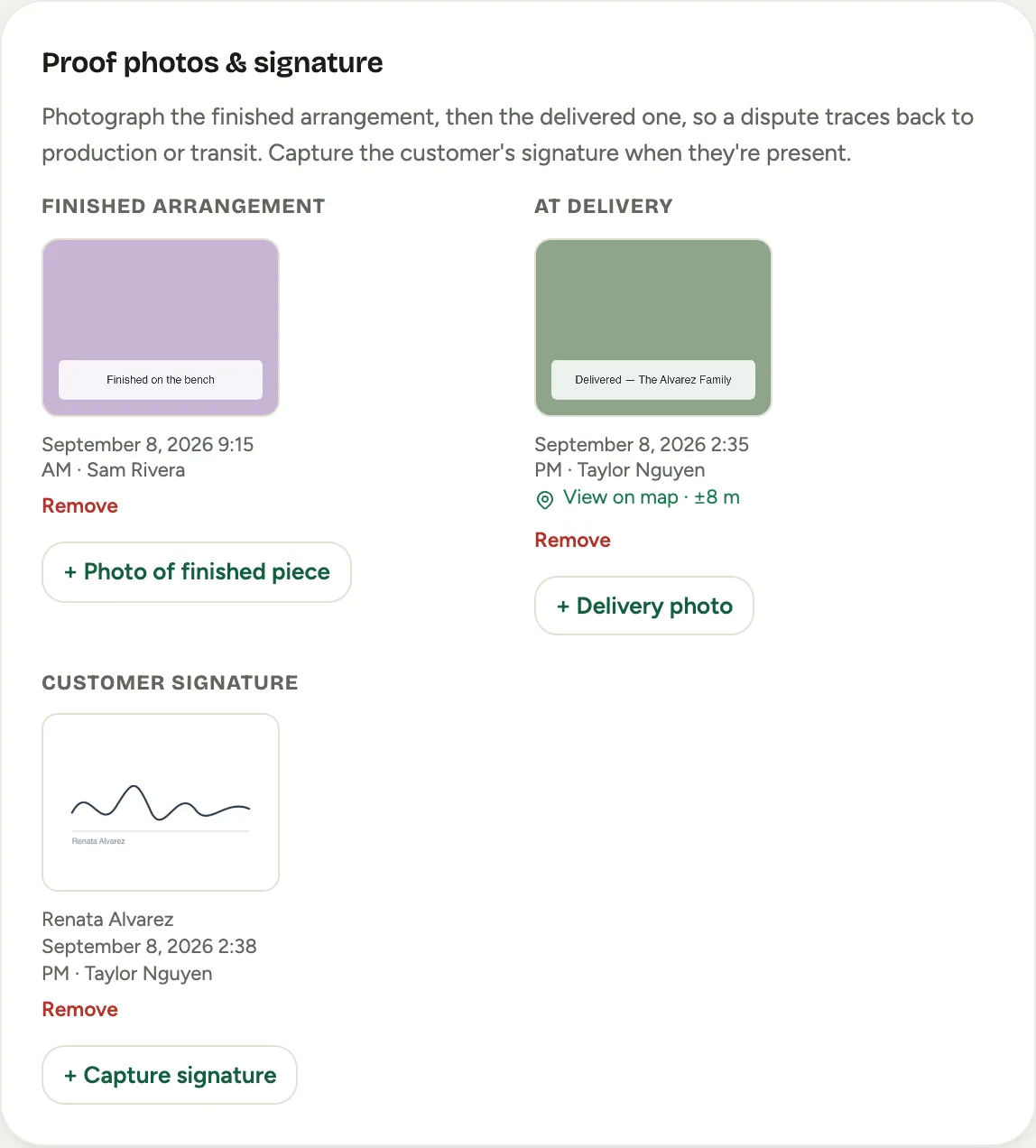
The last ten feet of a delivery is where trust is won or lost. The order record carries a Proof photos & signature card with three columns: Finished arrangement, At delivery, and Customer signature.
 Screenshot from a demo workspace; data illustrative.
A photo taken on a phone brings its location with it, shown as View on map with the accuracy, so a delivery has a place as well as a time. Photos taken on cellular upload a working copy straight away and the full resolution original later, which matters in a loading dock. When a question comes up in March, the answer is already filed against the order and on the customer’s timeline. Capturing it is in Prove a delivery.
The rental fulfillment board
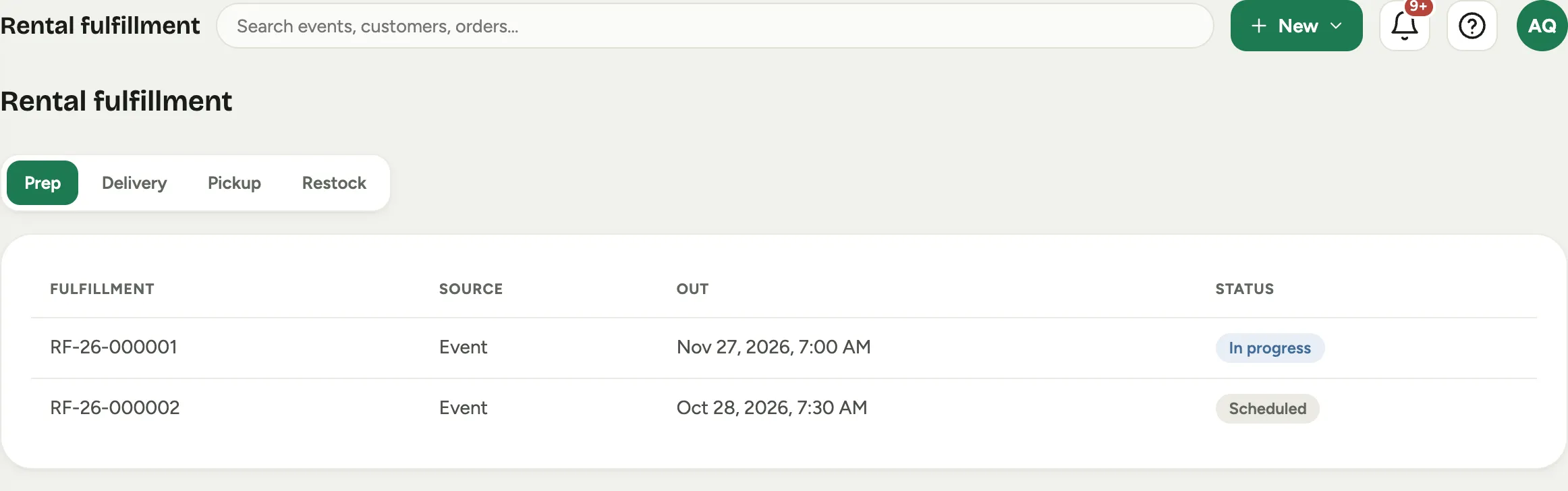
Rented pieces have a longer journey than flowers: they go out, they come back, and they have to be fit to go out again. Rental fulfillment is that journey, in four stages you can filter by: Prep, Delivery, Pickup, and Restock.
 Screenshot from a demo workspace; data illustrative.
Each row is one rental order. Source says where it came from, Event for a studio event or Storefront for a booking a renter made themselves, and both run the identical pipeline. Out is when it leaves, and Status reads Scheduled, In progress, or Completed.
A fulfillment record
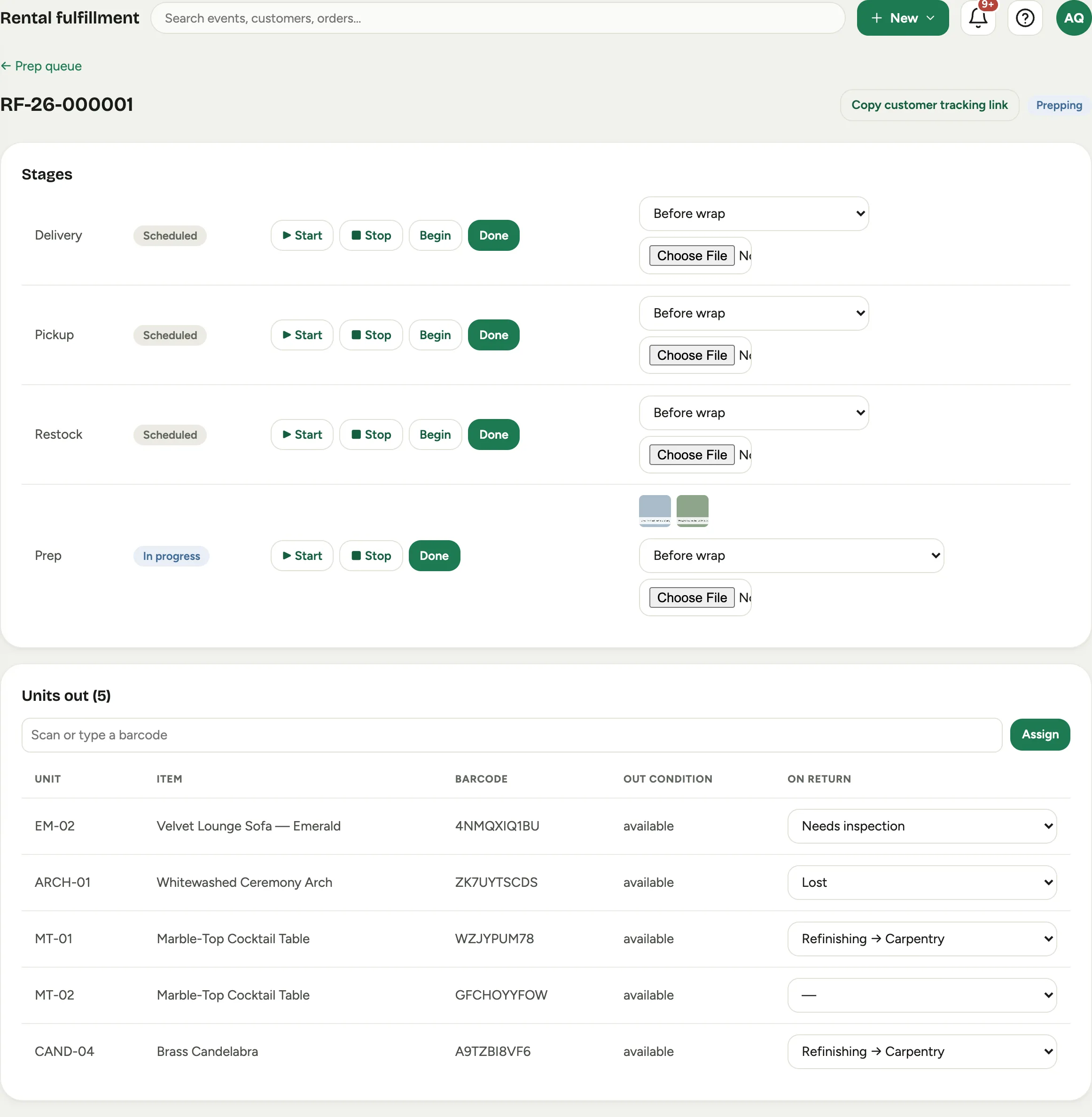
Open a row and you get the record for that rental order: its Stages and its Units out.
 Screenshot from a demo workspace; data illustrative.
Each stage has Begin and Done to move it, Start and Stop to put the clock on the labor, and a spot for photos. Before wrap and After wrap are the two that settle arguments: the condition a piece was in before anyone touched it, and how it left the building.
Units out is the physical truth of the load. A piece is scanned in by barcode, and the record holds its Unit label, the Item it is, its Barcode, and its Out condition. When it comes back, On return is where the condition gets recorded, and that single choice is what starts everything downstream.
Copy customer tracking link gives you a link the customer can open to watch the same journey without an account.
Preparing a load is in Prep a rental order for load-out.
The carpentry queue
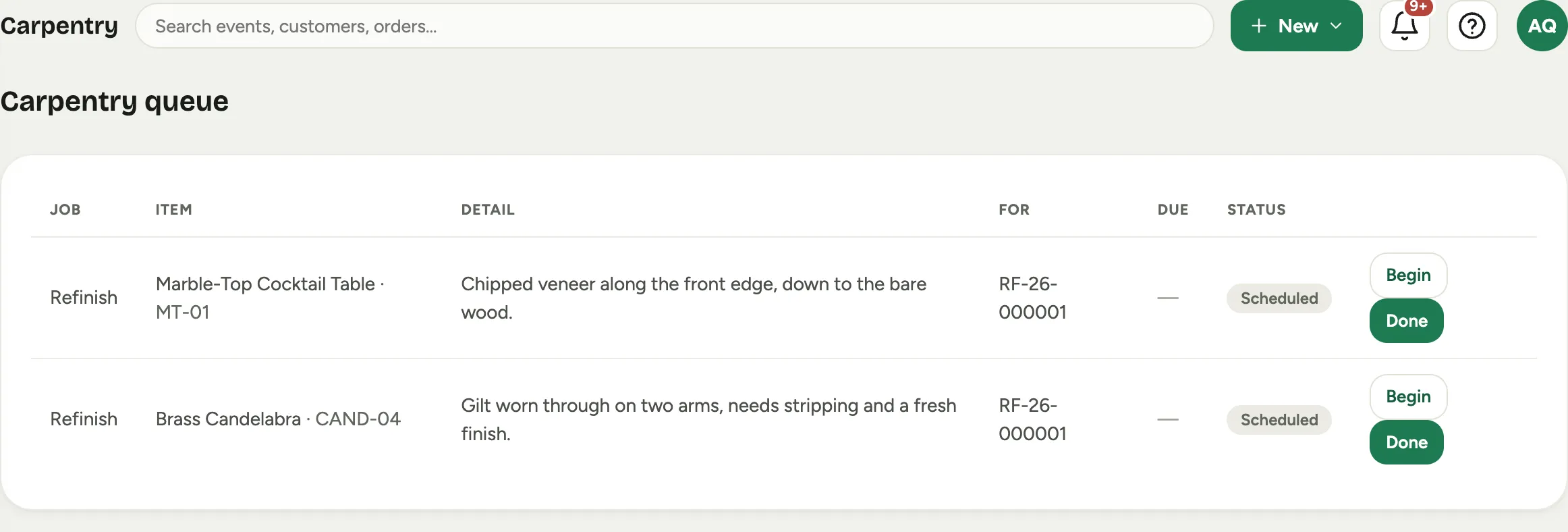
Some pieces need a shop, not a florist. Carpentry is the queue for work on the pieces themselves, with a job for each one.
 Screenshot from a demo workspace; data illustrative.
Jobs arrive in three kinds. A Refinish is raised automatically when a piece comes back needing work, and it carries the note from whoever checked it in, so the bench knows what it is looking at. A Custom finish is raised when a signed proposal asks for a piece in a specific color, and it is dated backwards from the day the piece has to go out, so the paint is dry in time. An Event build is a piece made for one event.
Working the queue is in Run the carpentry queue.
Damage and loss
Damage & loss is the money side of a piece coming back wrong, and it is deliberately a two step gate: someone decides, then someone bills.
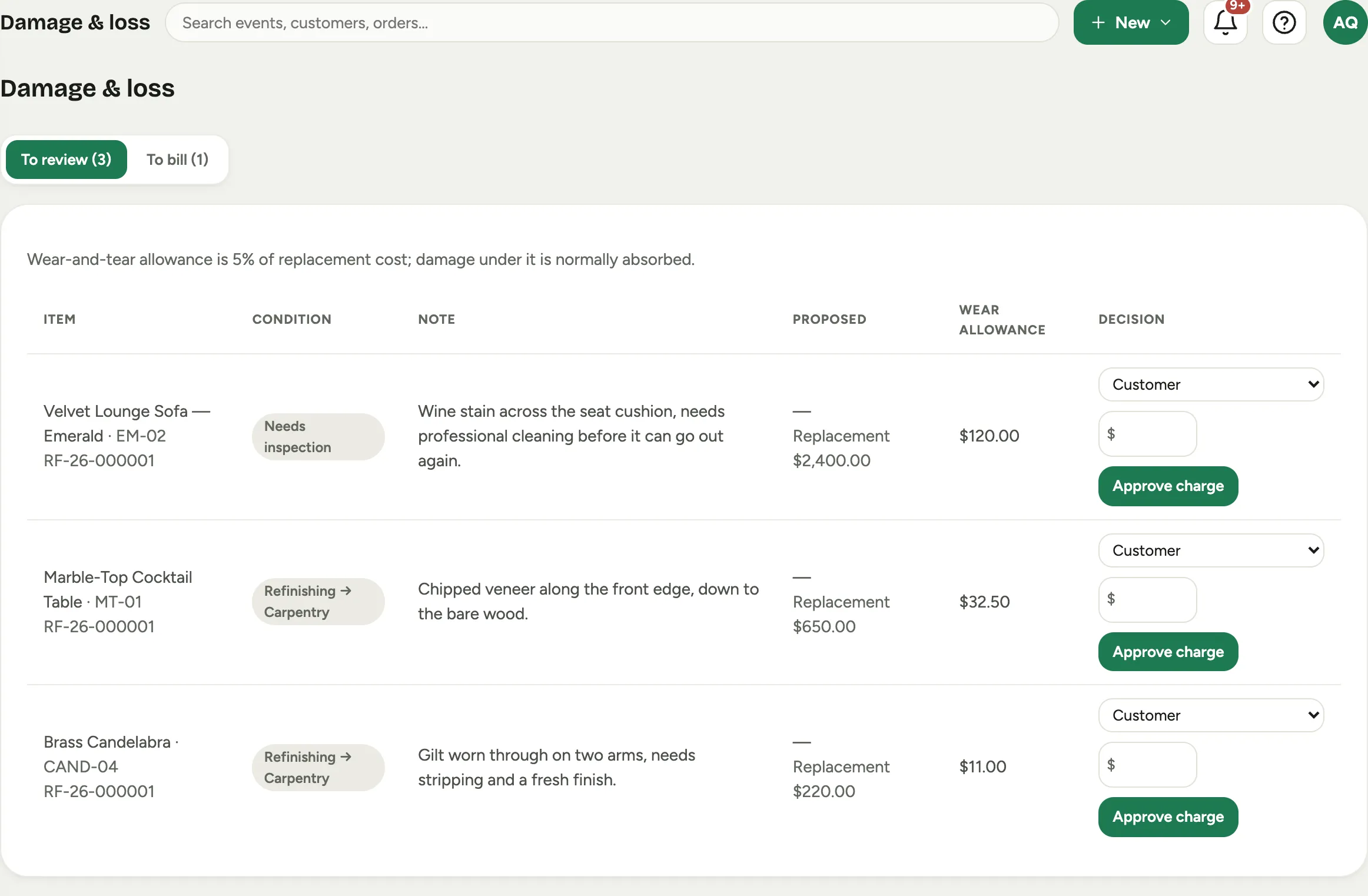 Screenshot from a demo workspace; data illustrative.
To review holds what came back. Each row shows the Condition it came back in, the Note, the Proposed charge, and the Wear allowance that piece carries, a percentage of its replacement cost that a normal event is expected to consume. The Decision is a fault: Customer, Our handling, or Wear & tear. Only a customer fault with a charge on it moves forward, with Approve charge. Anything else is Absorb, and it closes there.
To bill holds what was approved. A storefront booking with a card on file can be charged in place with Charge card; an event rental has no card, so the charge is recorded against the customer with Record billed and collected on their invoice.
The whole loop is in Check rentals back in and log damage.