How Florio handles your email and calendar
The most expensive capability in big-company CRM stacks is the plumbing between your inbox, your calendar, and your client records. Enterprise platforms sell it as add-ons and integration projects that run into five figures a year. In Florio it is simply how the product works: client mail files itself onto the right record, a worklist shows you what still owes a reply, booking links read your real calendar, and a recorded consult comes back as a draft you review.
This page walks the screens that make that happen. Every section below is a target of the in-product help icon, so the ? on the matching screen brings you straight to the heading here.
Email capture: the timeline writes itself
Connect your Google Workspace and client email threads land on the right record as they happen. No BCC address to remember, no forwarding rules, no copy and paste.
- Matched to the record, not the person who sent it. The thread lives with the account, so anyone with permission can see where things stand, even when the person who owns the relationship is out the week of the event.
- History included. Florio can backfill years of past correspondence, so day one starts with context instead of a blank slate.
- Private by design. Only client-matched business mail is captured, and access follows your role permissions.
Setting capture up is an admin job: connect the mailbox in Set up email capture, first connect Google. Once it runs, you tune which mail matches where by declaring a company’s domains and giving a contact all their addresses, both covered in Capture a whole company’s email. If you later change a customer’s address, an admin settles the change in Reconcile a client’s changed email.
The Emails panel on a record
Open a customer, order, or contact and the Emails panel gathers the mail captured against that record, newest first, with a count beside the heading. Each row carries a Received or Sent chip, the sender, the date, and the subject; click one to read the full message, its To and Cc lines, and any Attachments. When there is nothing yet, the panel reads No captured emails yet., and a long history collapses behind Load more.
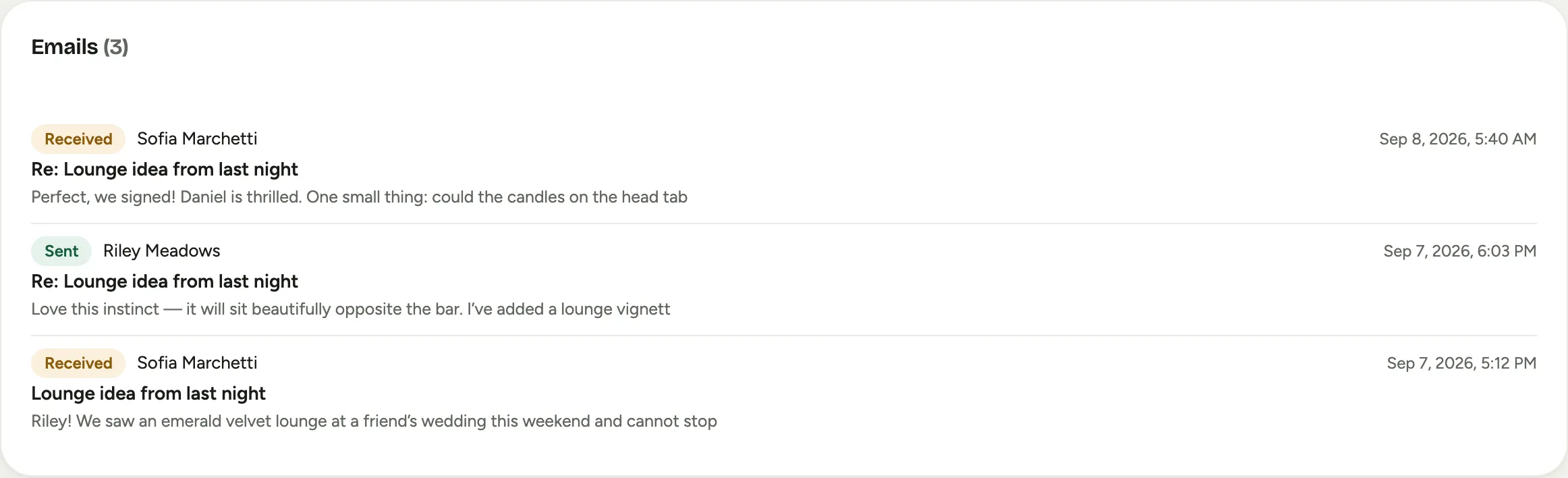 Screenshot from a demo workspace; data illustrative.
The Emails panel is captured mail you read, not a place you write. Leads and events keep their mail on the Activity feed instead of a separate panel; on an event, open the Activity tab and narrow the timeline with the Emails chip. Replying to any of it happens on the Activity feed, next.
Replying from a record
The Activity feed is the running timeline on every record, and it is where you write. On an inbound message, Reply opens a composer already addressed to the client. New email starts a fresh one. Fill in the Subject and Message, then choose Send. The reply goes out from your own connected mailbox, so it lands in your Gmail Sent folder and files straight back onto the record’s timeline, keeping the whole thread in one place.
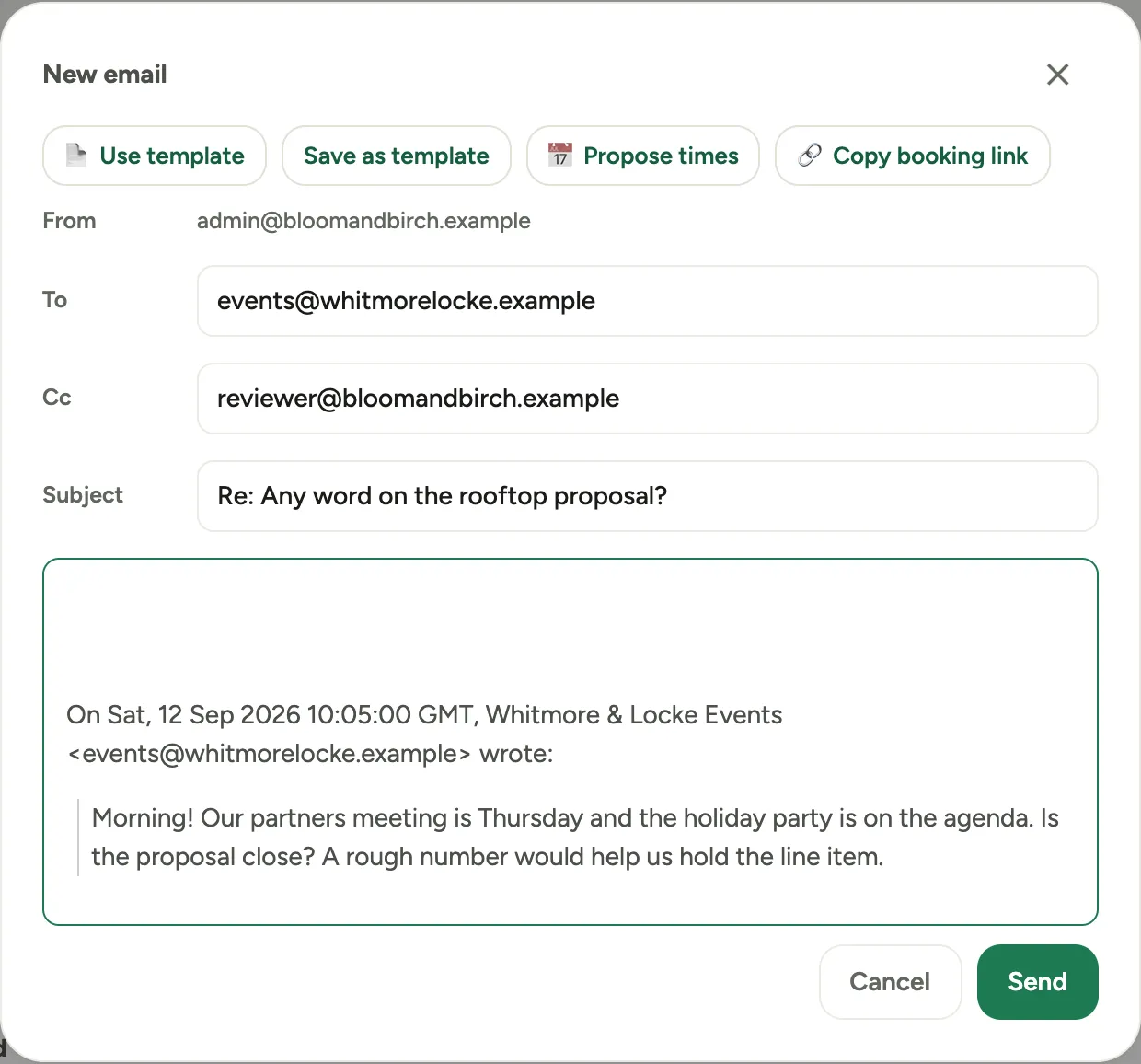 Screenshot from a demo workspace; data illustrative.
The composer also carries the meeting and template tools: Use template to start from a saved message, Propose times and Copy booking link to offer a meeting (see below). Step by step in Reply to a client from a record.
My Stuff: your reply worklist
My Stuff is one feed of the email traffic on the work that is yours, so nothing waits too long for an answer. The Mine scope shows the events you own, the customers you are the rep for, and customers with a live order you took; managers can switch to Everyone to see the whole team’s feed, each row attributed to its owner.
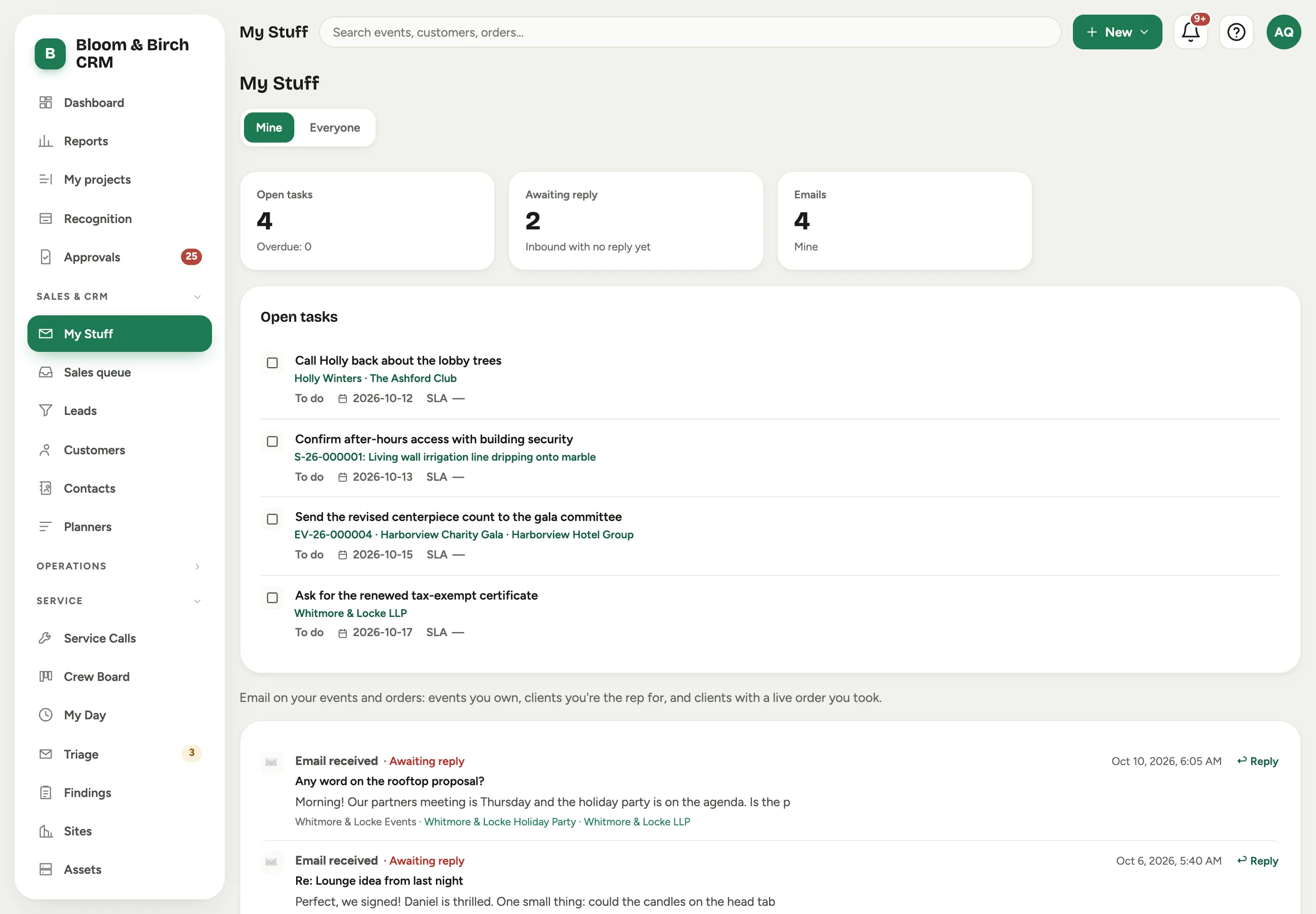 Screenshot from a demo workspace; data illustrative.
Your Open tasks come first, above the feed, each linked to the record it belongs to, with a count of how many are overdue (see Create and delegate tasks). For the email, Awaiting reply counts inbound messages with no reply yet, and Emails is the total in view. Every row wears its state, Awaiting reply, Replied, Sent, or No reply needed, and inbound rows have an inline Reply so you can clear them without leaving the page. Florio watches for threads whose last word was the client’s and nudges the owner, tuned to your business hours; the studio-wide version of “replies you owe” is the Sales queue. Working the list is in Keep up with replies.
Booking links and proposing times
Stop trading “does Tuesday work?” emails. Florio reads your team’s real calendars and lets the client pick from times that are genuinely open, two ways.
- The Booking card on a lead or customer gives you Copy booking link: paste it into any message and the client sees your live availability, picks a slot, and the meeting lands on the right calendar with a video link attached.
- In the composer, Propose times opens Propose meeting times, where you pick a few specific openings and choose Hold times & insert into email. Each becomes a live link in the message; the first one the client clicks books the consult and the rest release.
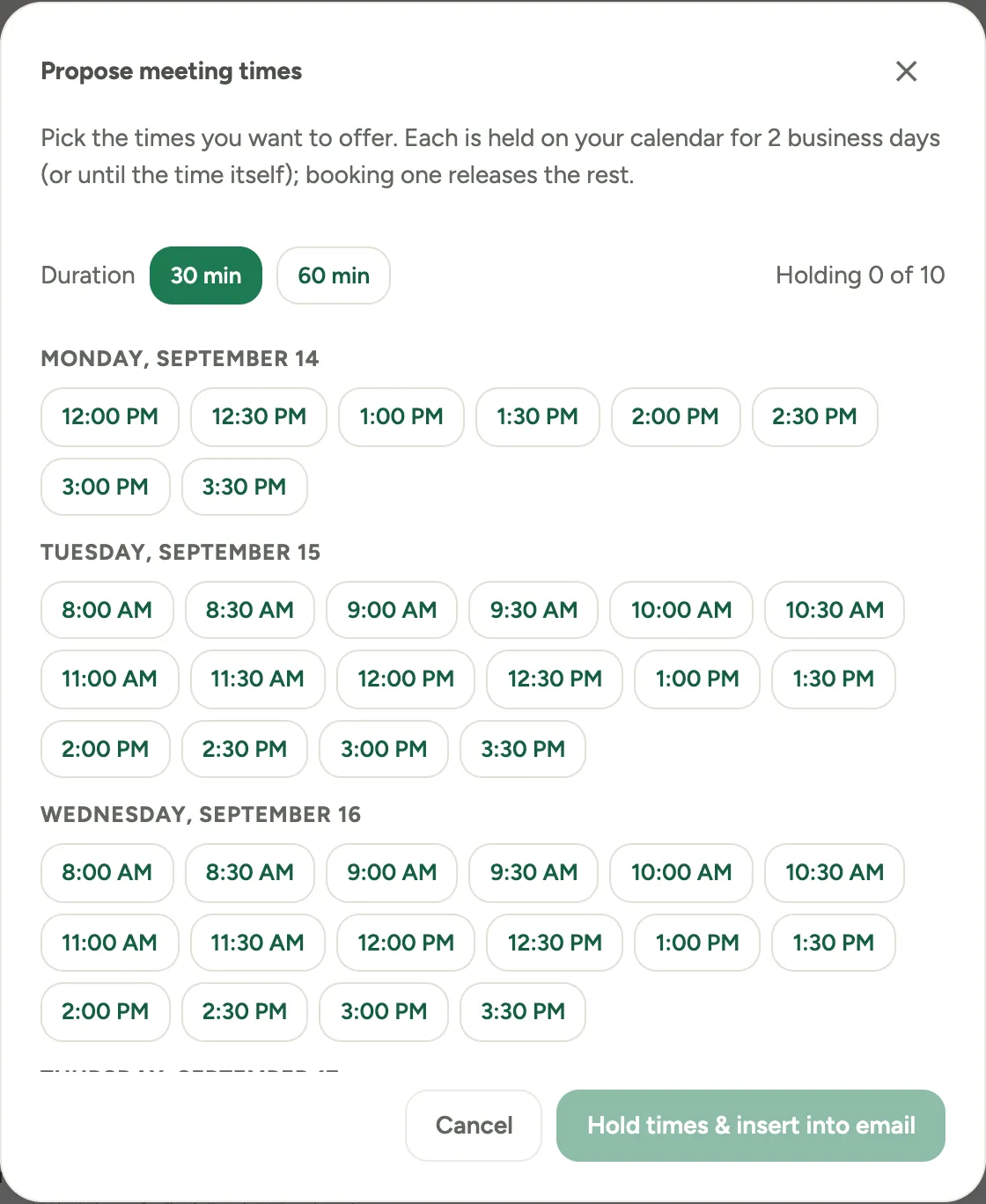 Screenshot from a demo workspace; data illustrative.
The reply nudge on the thread clears itself once the meeting books. Consults can also spread across your sales team automatically, with the lead’s owner getting first claim. The full walk-through is Propose meeting times in an email, and availability comes from connecting Google.
From meeting to draft
Turn on Record + summarize with AI when you start a consult (get everyone’s consent first), and Florio turns the transcript into structure you can act on. On the record’s Activity feed (the Activity tab on an event) you get an AI meeting summary of what was decided and an AI meeting insights row with the coverage and trust read on the conversation.
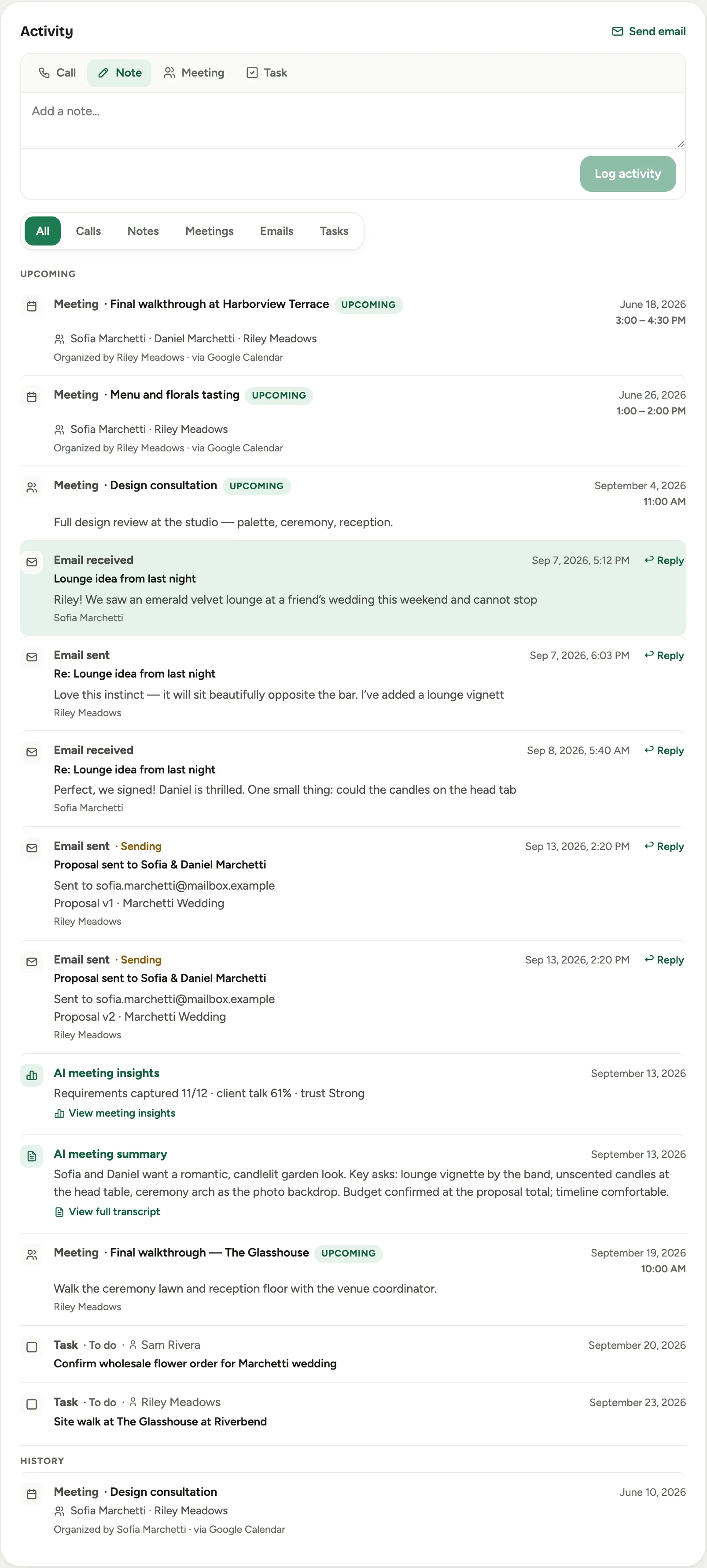 Screenshot from a demo workspace; data illustrative.
Florio also drafts the follow-ups. A Review AI actions from your meeting banner opens Meeting follow-up actions, a short list of suggested drafts and next steps, a draft proposal, a follow-up meeting, a task, that you Approve or Dismiss one at a time. Nothing is created until you approve it: it is a head start, not an autopilot. Reviewing a consult is in Review the notes from a meeting.