Capture a whole company's email
Some clients are a company, not a person: a venue, a caterer, a corporate planner whose team all email you from the same domain. Instead of adding every colleague by hand, you can tell Florio the company’s email domains once, and mail from anyone there lands on the company’s timeline. You can also give a single contact several addresses, so their work and personal mail both match to them.
Before you start
Email capture must be connected for your workspace (see How Florio handles your email and calendar). Domains and contact addresses are edited on the customer and contact records, so you need permission to edit customers.
Capture a whole company by its domain
- Open the company’s customer record.
- Find Email Domains and choose Add domain.
- Type the company’s domain, for example
acmevenues.com, and save.
 Screenshot from a demo workspace; data illustrative.
From then on, any email to or from that domain files to this company. If the sender is someone you do not have yet, Florio creates a contact for them under the company, marked as auto-created so you can review it later.
A few guardrails keep this safe:
- Consumer domains like gmail.com or yahoo.com cannot be added, so one rule can never sweep every individual client who happens to use the same free mailbox.
- A person pinned to their own record always wins over a domain rule, so a known contact’s mail still files to them.
- Role mailboxes like info@ or events@ file to the company without creating a contact.
To stop capturing a domain, use Remove domain on the same panel. Removing a rule does not delete any mail already captured.
Give a contact more than one address
- Open the contact.
- Under Email Addresses, choose Add email and enter the address.
- Use Make primary to mark the one you would write to first.
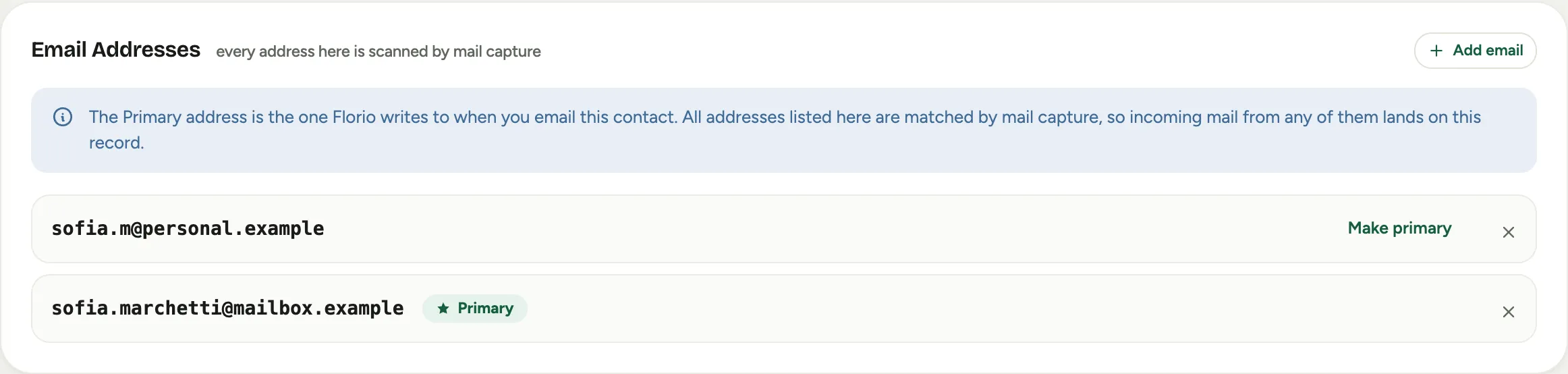 Screenshot from a demo workspace; data illustrative.
Captured mail matches the contact on any of their addresses, so a client who writes from both a work and a personal account still lands on one timeline.
Good to know
- A contact created automatically from captured mail shows a note until you confirm it. Confirm to clear the flag, or edit the name and details first.
- Changing a customer’s main email when the record already has captured mail does not break anything: Florio keeps both addresses working and files an approval for an admin to reconcile. See Reconcile a client’s changed email.