Set up Florio Service
Florio Service is an add-on. Once it is enabled for your workspace, everything about how it runs, your labels, your response targets, who gets dispatched, lives on one Admin screen.
Before you start
Florio Service is available on request. See the add-on entry on the pricing page, or ask us through the request form. You need the settings permission to change any of this. Find it under Admin, then Service.
Turn on the module and set your labels
- On the Service tab, turn on the Field Service Module. That reveals Service Calls, Sites, Assets, Contracts, and the dispatch board for everyone with service access.
- Under Call Statuses, name the stages your team uses. Each of your labels maps to a fixed platform category (new, in progress, on hold, resolved, closed, cancelled), which is what the engine reads, so you can word them your way without breaking anything. Dispatch Statuses work the same for visits.
- Under Call Categories, add the kinds of work you do (irrigation, lighting, audiovisual), each with a default visit length that pre-fills a new visit.
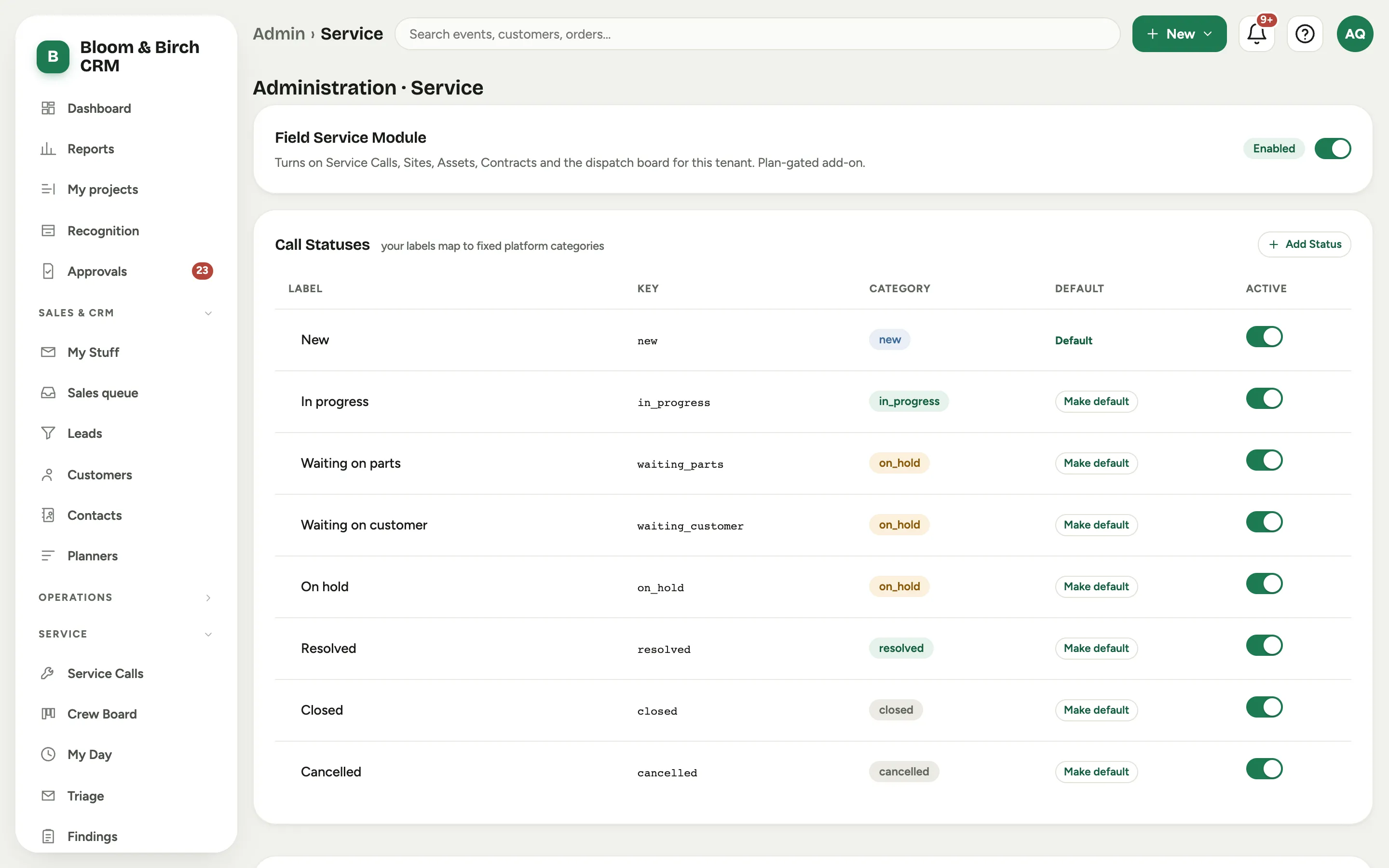 Screenshot from a demo workspace; data illustrative.
Set your targets, rates, and pool
- Fill in the SLA Priority Matrix: for each priority, the first-response and resolution targets in business hours or business days. These drive the Due dates and the at-risk flags on every call.
- Under Rates & Targets, set the labor bill rate, the default burden, your utilization and SLA-attainment goals, and the service desk phone.
- Under Dispatch Pool, choose who can be sent to a site: everyone active, specific people, the members of a role, or the members of a queue. Turn on Release Notifications so a technician is alerted when a visit is released to their day.
- Under Queue Owners, set who owns each service queue so unmatched intake and new calls route to a person.
Choosing who appears on the board
The pool decides two things at once: whose row shows on the Crew Board, and who the technician picker offers. Four ways to say it:
| Pool source | Use it when |
|---|---|
| Everyone | small teams where anyone might go out |
| Specific people | you want to name them, and change the list without changing anyone’s access |
| A role | your roles already line up with who goes to site |
| A queue | you already run a queue whose membership is the same set |
Specific people is the plainest of the four and usually the right one. Because it names people directly, adding someone to the board later is a checkbox: nothing about what they can see or do in Florio changes. Picking a role instead ties board visibility to permissions, so adding a project manager to a technician role to get them a board row would also hand them that role’s permissions.
Office staff who book the work do not belong in the pool. A dispatcher schedules the board; they are not someone the board schedules.
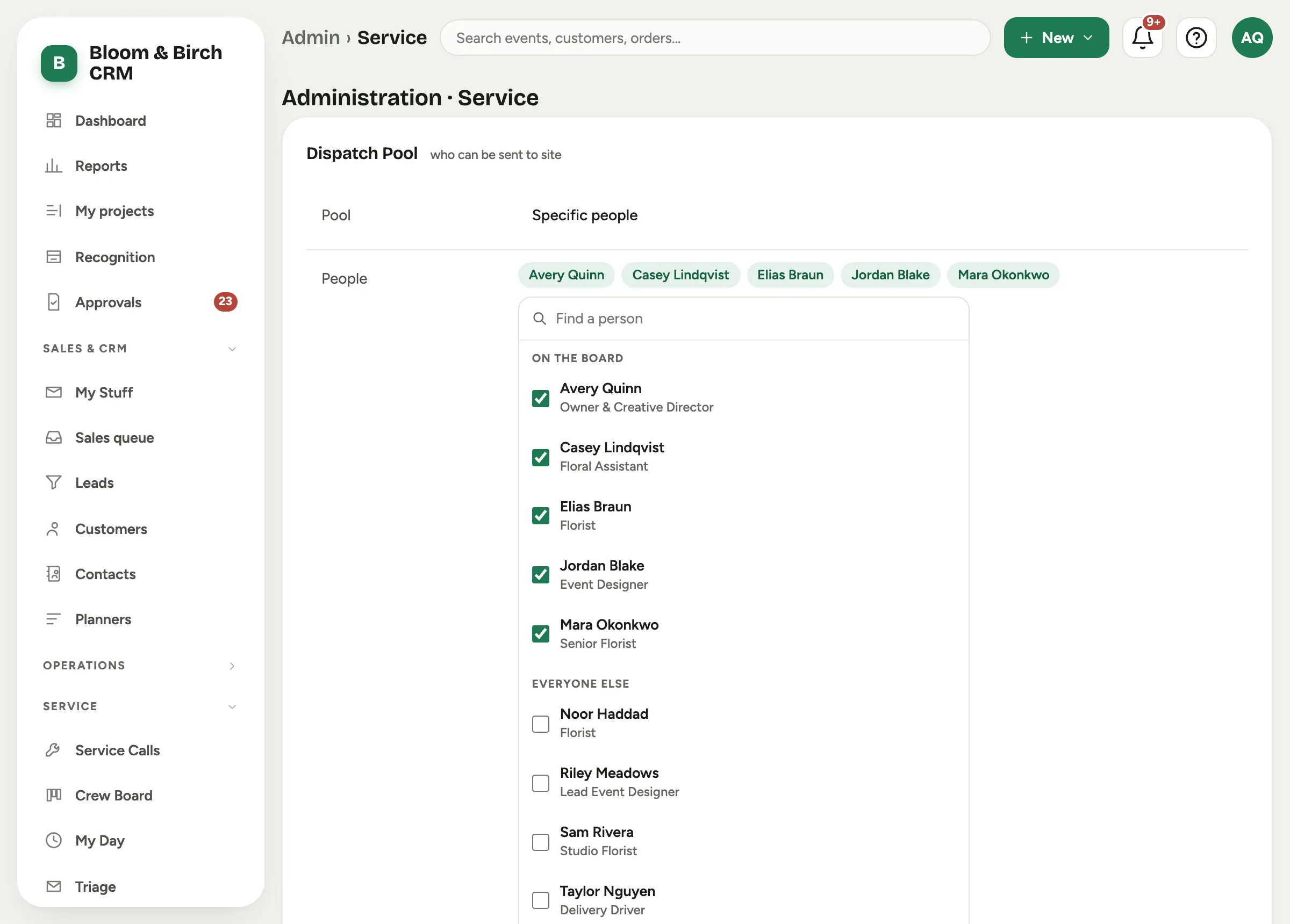 Screenshot from a demo workspace; data illustrative.
Ignore at intake
Some mail to an intake address is not a request: an answering service’s daily note that there were no messages to deliver, a vendor’s automated digest. The Ignore at intake card holds rules for those. Each rule names a sender (an address, or a domain for everyone on it), words the subject must contain, words the message must contain, or any combination; the rule matches only when every filled field matches. A matched message is still captured, so nothing is lost, but it never opens a call, never starts a response clock, and never triggers an acknowledgement.
- Keep the rule as narrow as the notice. A rule on the sender alone would also swallow the mornings that do carry messages; pair the sender with the words that only the empty notice contains.
- A matched message that arrives as a reply on an existing call’s thread still joins that call.
- Remove a rule and the next matching message opens a call again.
- A rule can also be added from a call, when you close it as Automated mail or a receipt. It appears here with a note saying which call it came from.
- The card also holds Hold likely non-service mail in Triage, the switch for the Triage lanes that hold bulk mail and likely project replies before they reach the open list.
Relay senders
Some requests reach you through a service that sends them from its own address: a device portal’s support button, your answering service. List those services on the Relay senders card, under Ignore at intake. Each row names the sender (an address, or a domain for everyone on it), the name to show on Triage cards, and a note.
Florio then reads each message from that sender for the customer’s own name, email and phone. When exactly one customer has that email or phone, the call opens on that customer; otherwise it waits in Triage showing the person. The call’s title and problem come from the request itself, and the message stays on the call in full.
- The service’s address is never saved on a customer and never counts as anyone’s when Florio suggests a merge.
- The acknowledgement goes to the person, or to nobody when the message carries no email.
- A relay sender’s mail is never held in Triage: what it passes on is a request.
- Under each row, a line re-reads the newest message from that sender and says what Florio would take from it and which customer it would match. Check it before relying on a new sender.
- Ignore at intake rules still run first, so a service’s daily notice is still dropped.
- The reading follows English labels (Name, Email, Phone, Message and the like). A service that writes other labels reads as ordinary mail.
The shared reply address
The Shared reply address card lets people answer service customers from one support identity instead of their own mailbox. Enter a real mailbox on your Workspace domain and a display name, then choose Turn on. Once on, every value is edited in place: the mailbox, the display name the customer sees, where replies go (a Reply-To such as your intake address, or blank to receive replies at the mailbox itself), the shared signature, and whether the composer offers the shared address by default on service calls.
- The signature is the only signature on a shared reply and cannot be edited in the composer. Type deskPhone inside curly braces to insert the service desk phone from the rates card, so the number lives in one place.
- The card tells you whether email capture monitors the mailbox. If it does not, sent copies and direct replies to that address will not be captured; add it under Admin, Email capture.
- Sent through chooses the road out. Shared mailbox through Gmail sends from the mailbox itself and files a copy in its Sent folder. Built-in sender with delivery tracking delivers through Florio instead: delivery, bounces, opens and clicks show on the call, the mailbox needs no login at all, and the reply still threads under the customer’s original message. The built-in sender requires your organization’s verified sending address, set by your Florio administrator, on the same domain as the mailbox; the card tells you if it is missing.
- Who may send as the shared address is a permission, Reply to service customers as the shared support address, under Admin, Roles. Turn off shared replies clears the card; people then send only as themselves.
The request form
The Intake Mailboxes you list here become web-to-case inboxes: mail sent to them opens a service call automatically, and an unmatched sender lands in Triage.
Florio also gives you a public Request Service page to put on your own website. It carries your brand and your reply-time promise, opens a call automatically, matches an existing customer, and needs no account. Ask us for your form’s link when you turn the module on.
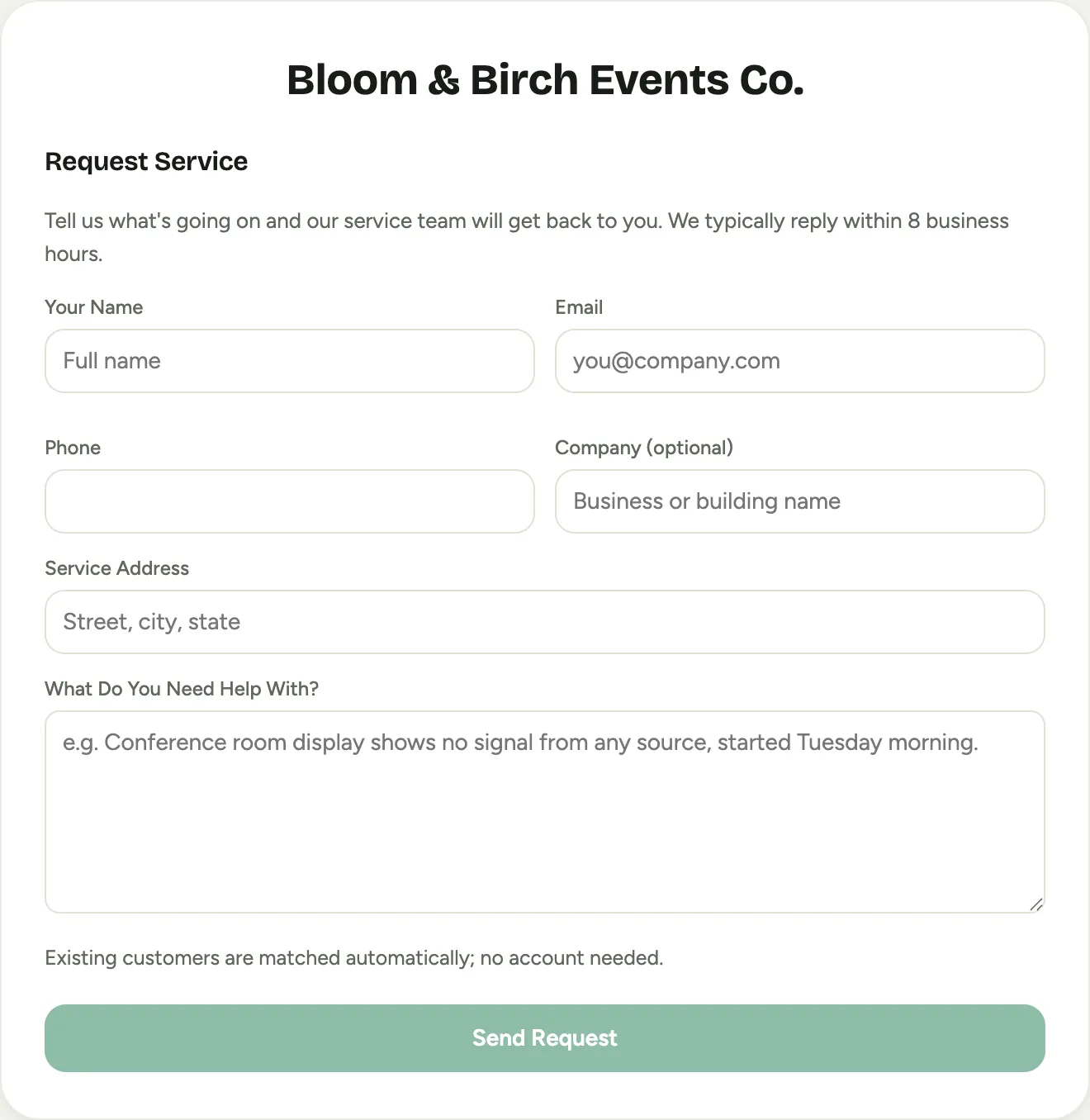 Screenshot from a demo workspace; data illustrative.
Good to know
- Statuses and categories are retire-not-delete: you can deactivate one you no longer use without breaking the history on old calls.
- The dispatch pool is a safety rail, not a lock. If the pool is empty, everyone active is eligible; sending someone from outside the pool warns rather than blocks. That is deliberate: a dispatcher covering a 7am no-show has to be able to send whoever is standing there.
- Someone left out of the pool still appears on the board on any day they are already crewed on a visit. Hiding them would hide the visit, and any double-booking on it.