Book, price and follow up a Summary of Findings
The technician writes and presents the Summary of Findings on site. Everything around it is the office’s: the fee is chosen when the call is booked, findings the technician hands over get priced here, the presented page is followed up until it is signed, and every approval, signature and charge lands on the call for the record. This page walks it in the order it happens. What the technician does is in Write and present a Summary of Findings.
Before you start
You need the permission to manage findings, which the seeded admin and manager roles carry. The feature has to be on under Admin, then Service, in the Summary of Findings card at the end of this page.
Book the call with the fee
- Open the call the usual way, from Service Calls and New Service Call or from the site record. The steps are in Take a service call.
- Leave Pricing on Account default, which is Summary of Findings when the feature is on. Choose Time and materials only for a call you mean to bill by the hour.
- Under Diagnostic fee choose Residential or Commercial. From customer type picks the basis from the customer record, individual or company, and is right most of the time. Choose it deliberately here because the customer is told the amount on the phone.
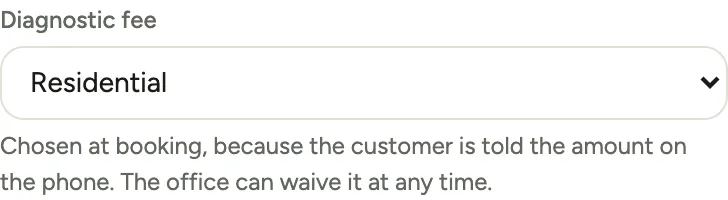 Screenshot from a demo workspace; data illustrative.
- Choose Create call. The call header carries a Summary of Findings chip beside the billing chip, and a Diagnostic fee fact with the amount and basis. The chip stays editable until the findings are presented, then it locks, because the customer has seen a price formed one way.
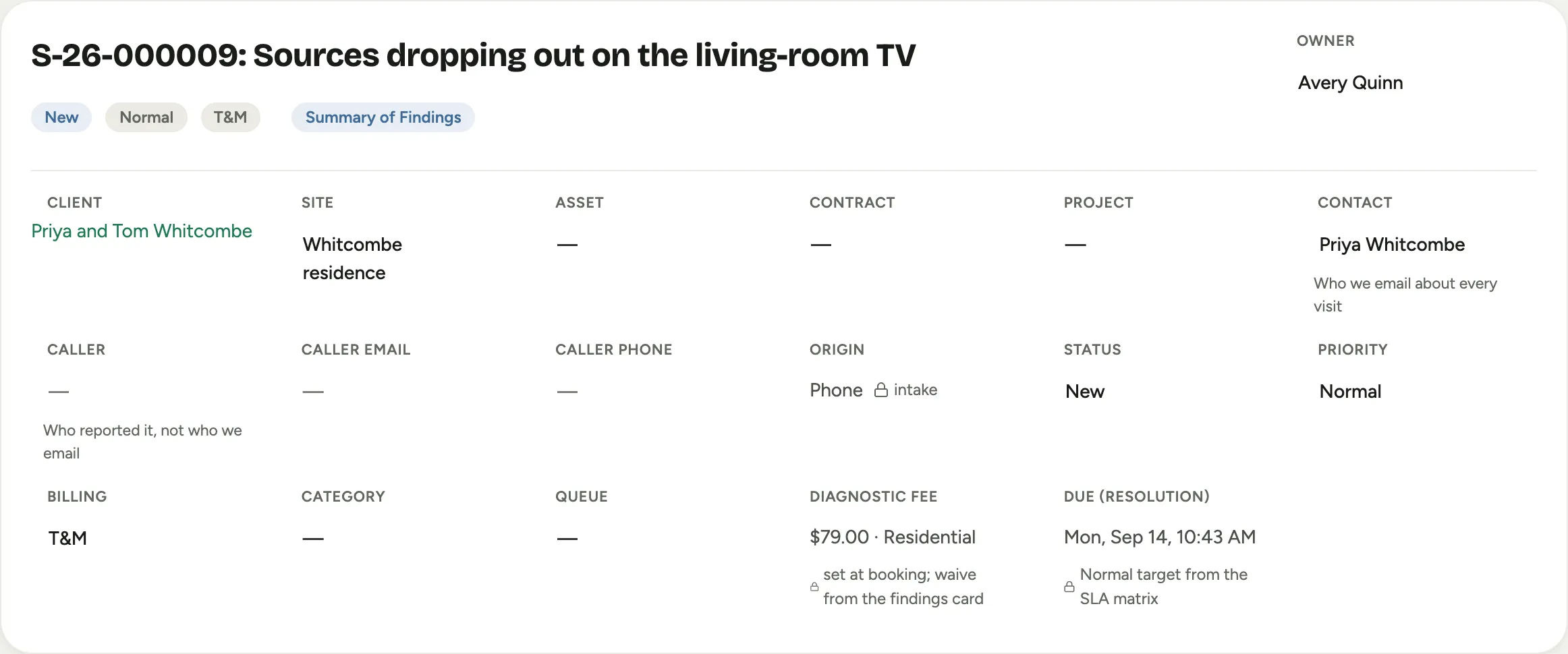 Screenshot from a demo workspace; data illustrative.
- Add and release the visit as usual: Add Visit, put a technician on it, Release to Field. The full steps are in Schedule and dispatch a visit.
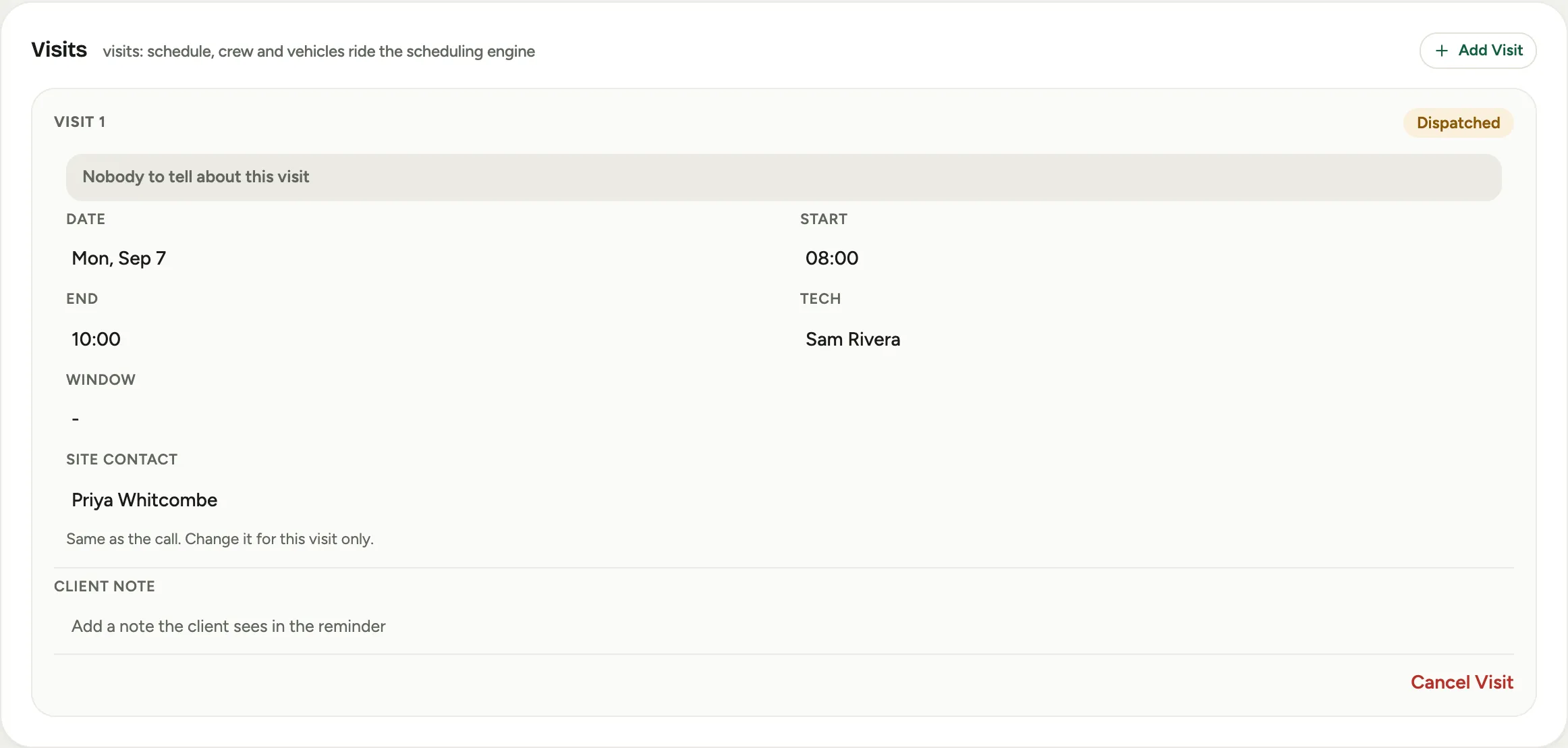 Screenshot from a demo workspace; data illustrative.
The two Findings lists
Findings in the Service group is the office’s worklist for this feature. Its badge counts the items waiting on you: findings to price plus overdue follow-ups.
Findings to price lists every finding the technician handed to the office, with the technician’s note and how long it has waited. Price it opens the call.
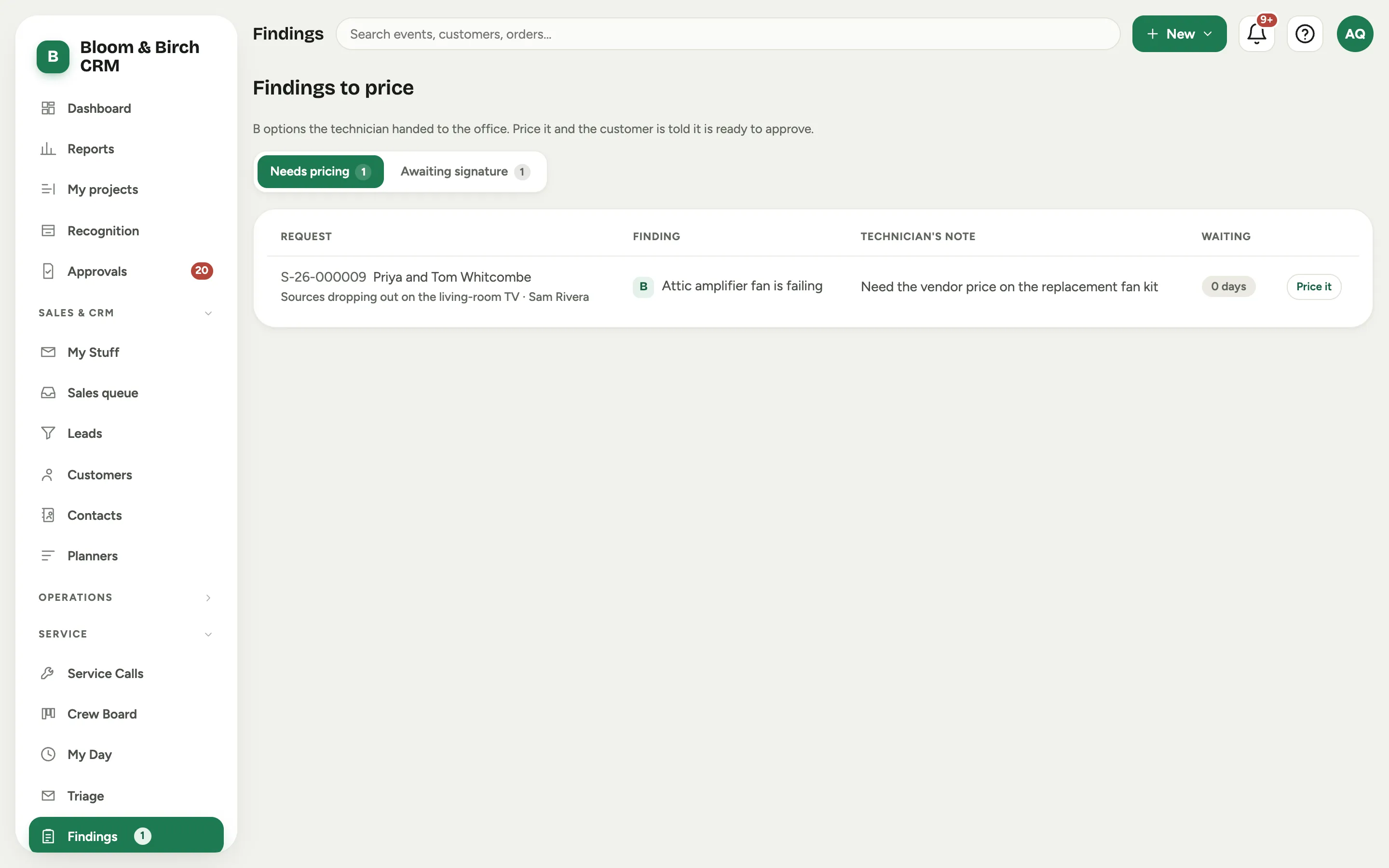 Screenshot from a demo workspace; data illustrative.
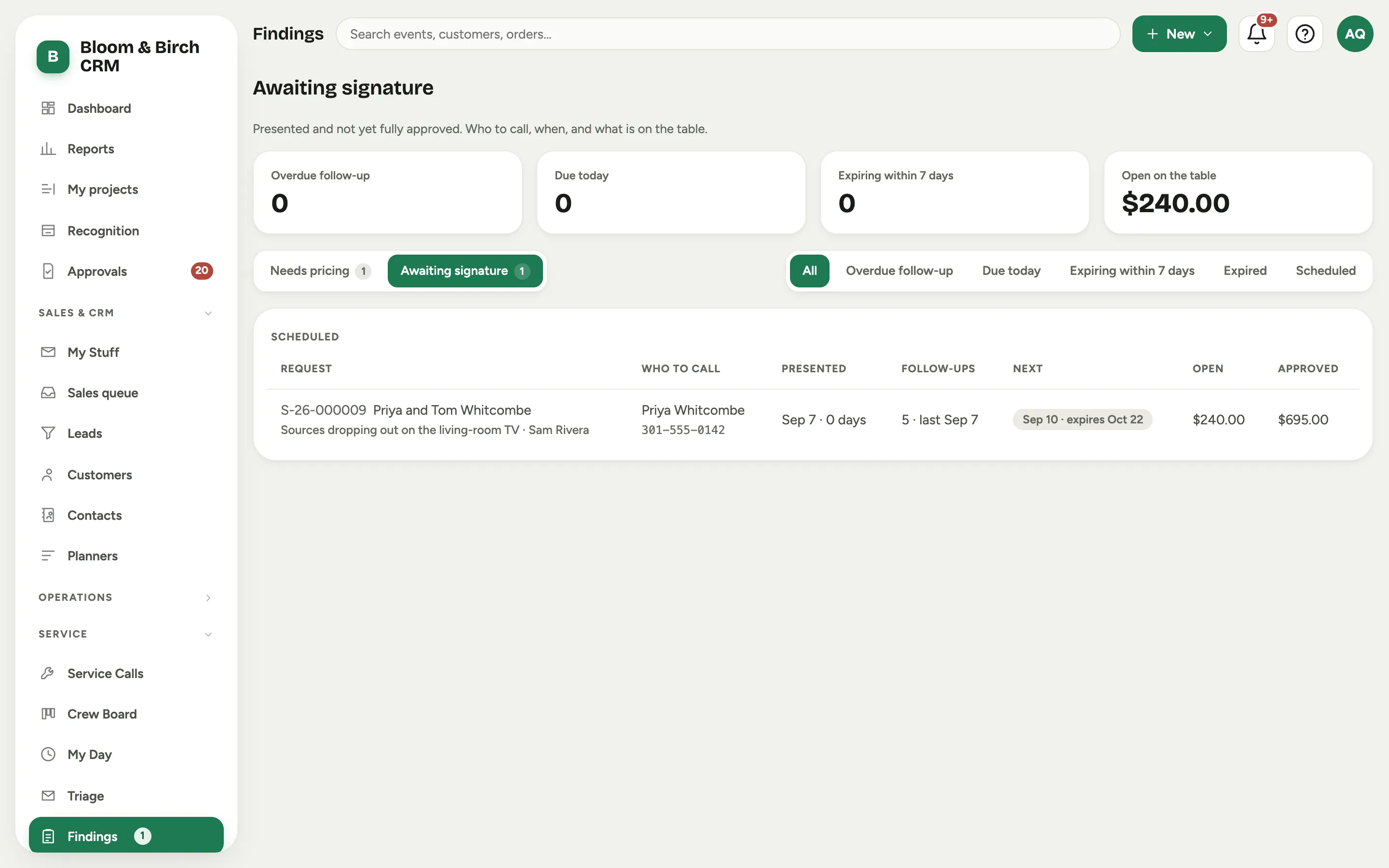
Awaiting signature lists every presented page that is not fully approved: who to call and their phone, when it was presented, how many follow-ups so far and when the next is due, what is still open and what is already approved. The rows group into Overdue follow-up, Due today, Expiring within 7 days, Expired and Scheduled. An expired page stays on the list until you extend it or void it.
 Screenshot from a demo workspace; data illustrative.
The findings card on the call
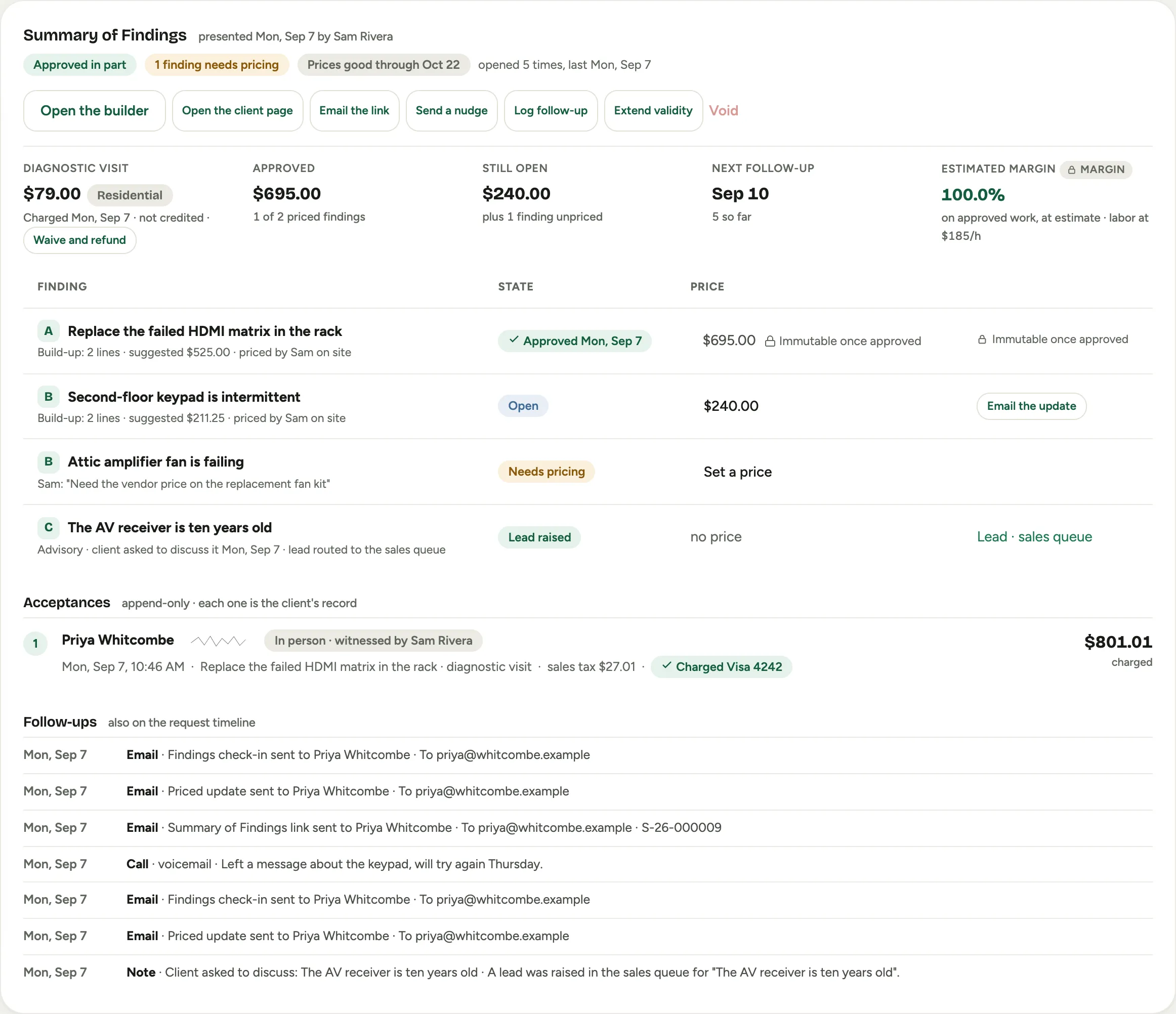
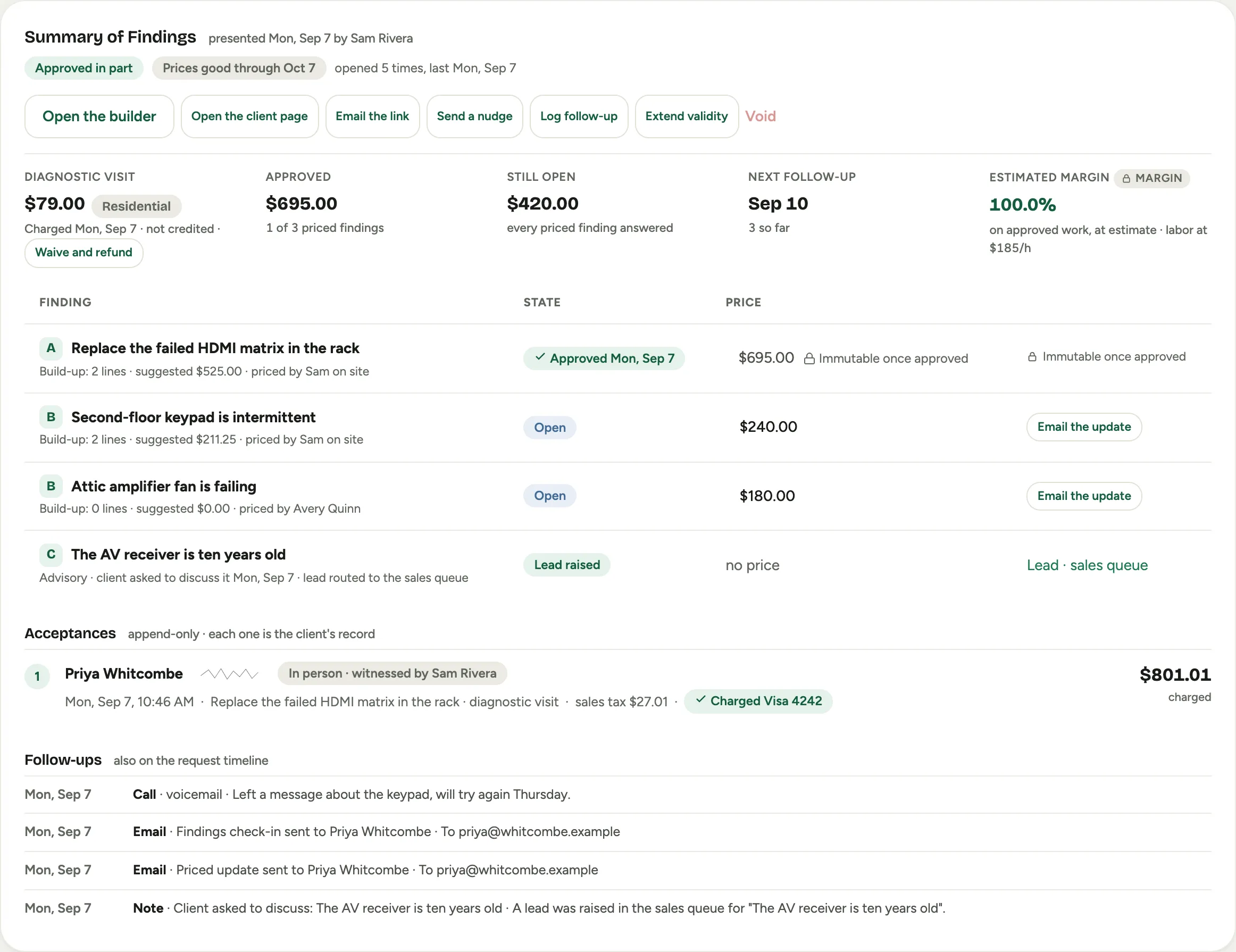
Open the call and the Summary of Findings card shows the whole picture: the status, how many findings need pricing, how long the prices are good, how often the page has been opened, and the actions across the top. Below it a facts strip reads Diagnostic visit, Approved, Still open, Next follow-up and, for roles that can see margin, Estimated margin.
 Screenshot from a demo workspace; data illustrative.
The table lists every finding with its section letter, its state and its price. An approved finding is frozen. Under Acceptances, each approval is its own record with the signer, the drawn signature, whether it was signed in person with the technician or from the email, the tax, and the charge. Under Follow-ups, the calls, notes and emails since the page was presented.
Price a finding the technician handed to the office
- In the table, the finding reads Needs pricing with the technician’s note. Click Set a price, type the price, and choose Save.
 Screenshot from a demo workspace; data illustrative.
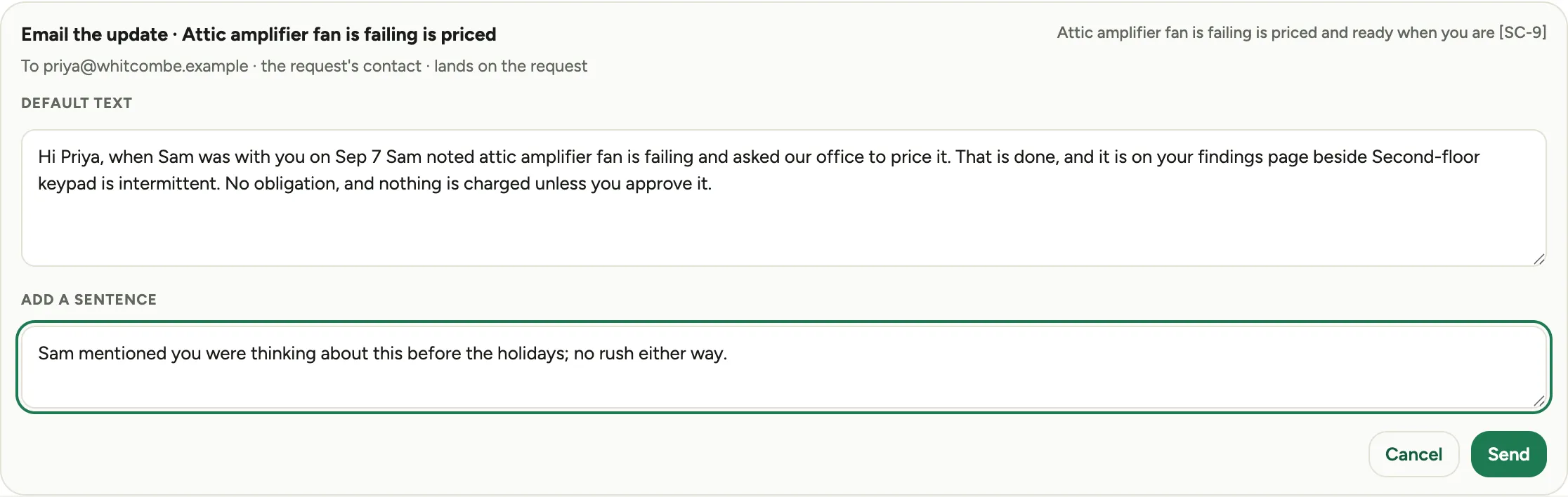
- The priced update email opens ready to send, with default text you can change and a box to add a sentence of your own. Choose Send. The customer is told the finding is priced and it becomes choosable on their page.
 Screenshot from a demo workspace; data illustrative.
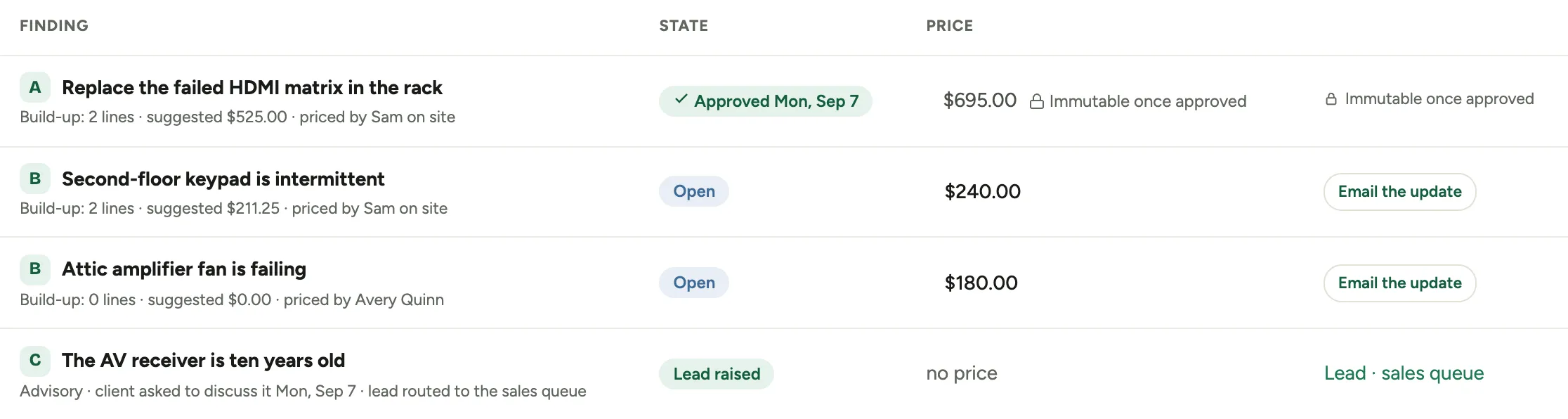
- The finding now reads as open with its price, and Email the update stays available on any open priced finding if you need to send it again.
 Screenshot from a demo workspace; data illustrative.
If you can, add the internal build-up for the finding in the builder (Open the builder), so the sales tax and the estimated margin are read from real lines. The customer never sees them.
Follow up until it is signed
Prices are honored for thirty days by default, and the office follows up every three days until the page is signed. Three actions on the card do that, and each one moves the Next follow-up date:
- Send a nudge opens a check-in email with default text. Edit it if you like, add a sentence, and choose Send.
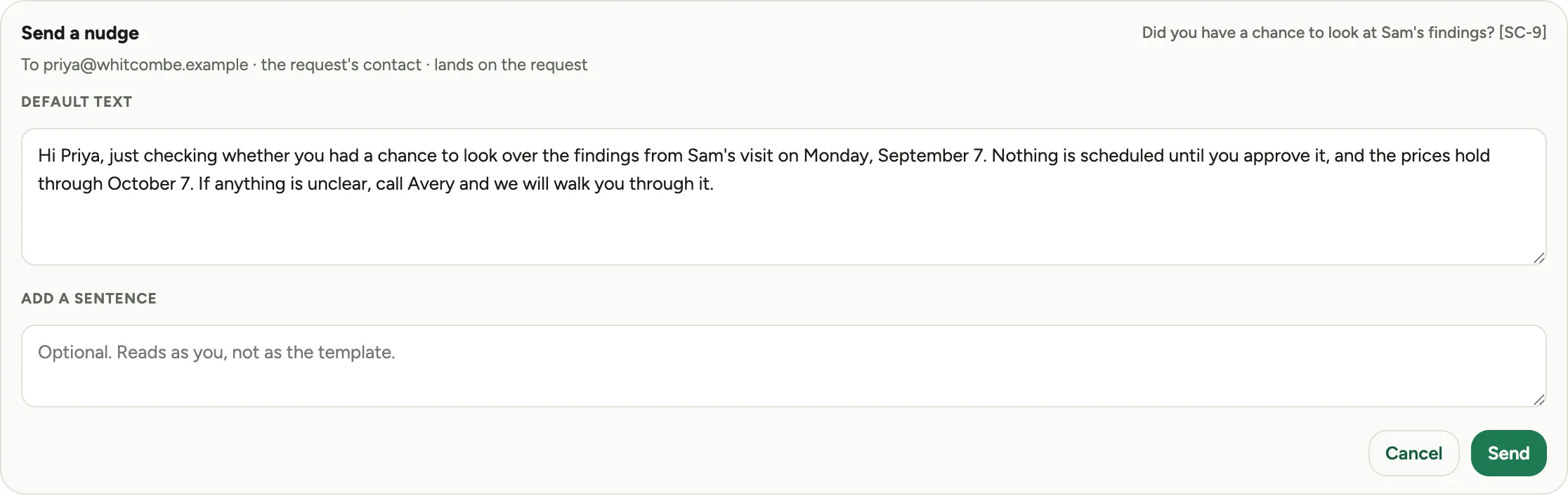 Screenshot from a demo workspace; data illustrative.
- Log follow-up records a phone call or a note: the outcome, what was said, and when to try next. Choose Log. It lands under Follow-ups and on the call’s timeline.
 Screenshot from a demo workspace; data illustrative.
 Screenshot from a demo workspace; data illustrative.
- Extend validity moves the date the prices are good through. Pick the new date and choose Extend. Use it for an expired page too; it comes off the Expired group.
 Screenshot from a demo workspace; data illustrative.
Email the link sends the customer their page, to the contact on the call or to an address you type. Open the client page opens it yourself, to see exactly what they see.
 Screenshot from a demo workspace; data illustrative.
When the card is declined
The approval is written before the card is charged, so a declined card leaves a signed approval and a payment to chase, never a charge with no record. The acceptance shows the decline and a Retry charge button. Sort the card out with the customer, then retry; a receipt goes out when it succeeds. Parts for that approval are not ordered until it clears.
 Screenshot from a demo workspace; data illustrative.
 Screenshot from a demo workspace; data illustrative.
Waive the diagnostic fee
Choose Waive under Diagnostic visit in the facts strip and give a reason. The fee comes off the customer’s page and the record shows who waived it and why. Once the customer has already paid the fee, the button reads Waive and refund and the fee and its tax go back to the card.
 Screenshot from a demo workspace; data illustrative.
Void a page nobody approved
Void retires a presented page the customer will not be acting on, for example when they went with another vendor. Give a reason. Every link to the page stops working, and the call keeps the record. A page with any approval on it cannot be voided; a change of heart after payment is a refund, not a void.
 Screenshot from a demo workspace; data illustrative.
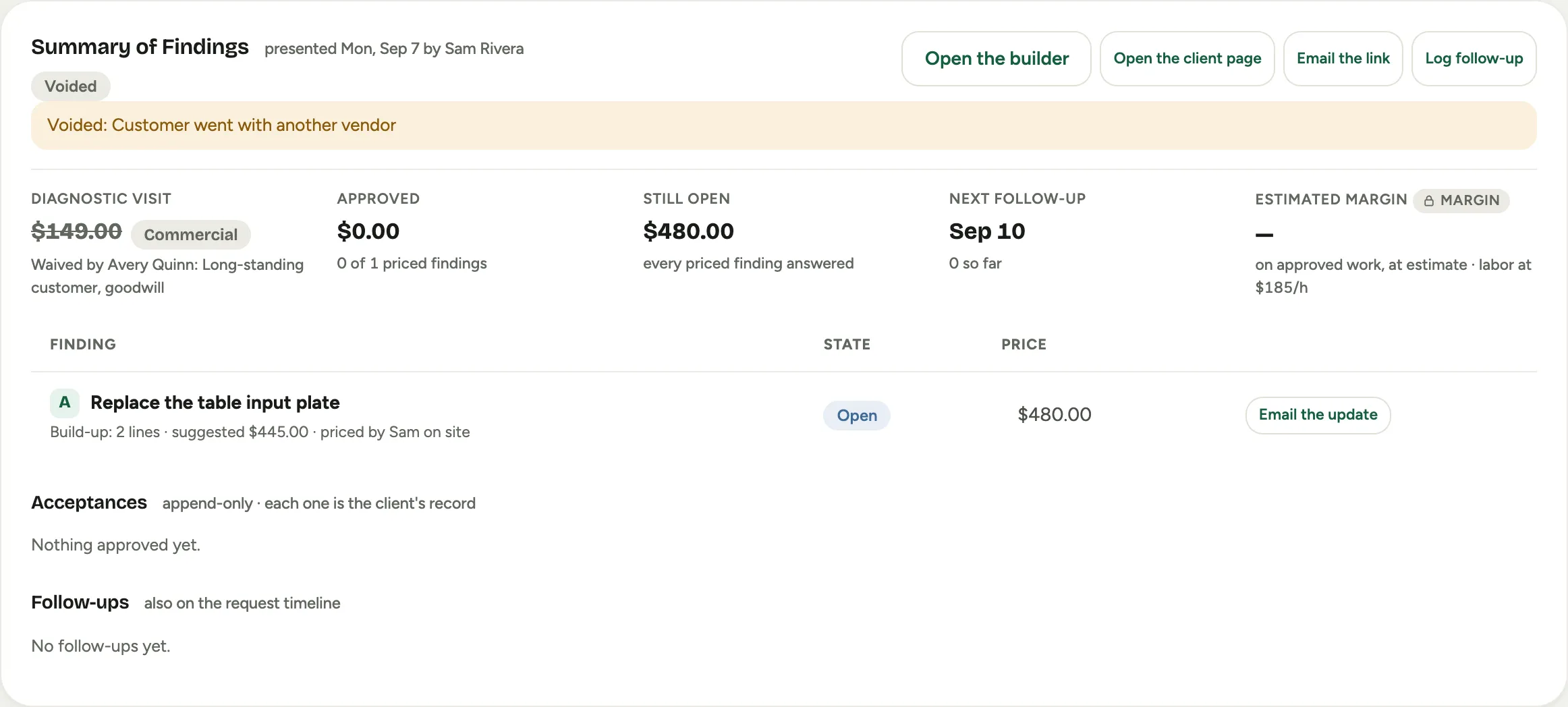 Screenshot from a demo workspace; data illustrative.
When the customer asks to discuss a longer-term item
A section C finding has no price. When the customer taps I’d like to discuss this on their page, Florio raises a lead in the sales queue with the finding’s title, the customer’s sentences and the technician’s note, and the table shows Lead raised with a link to it. The sales team takes it from there.
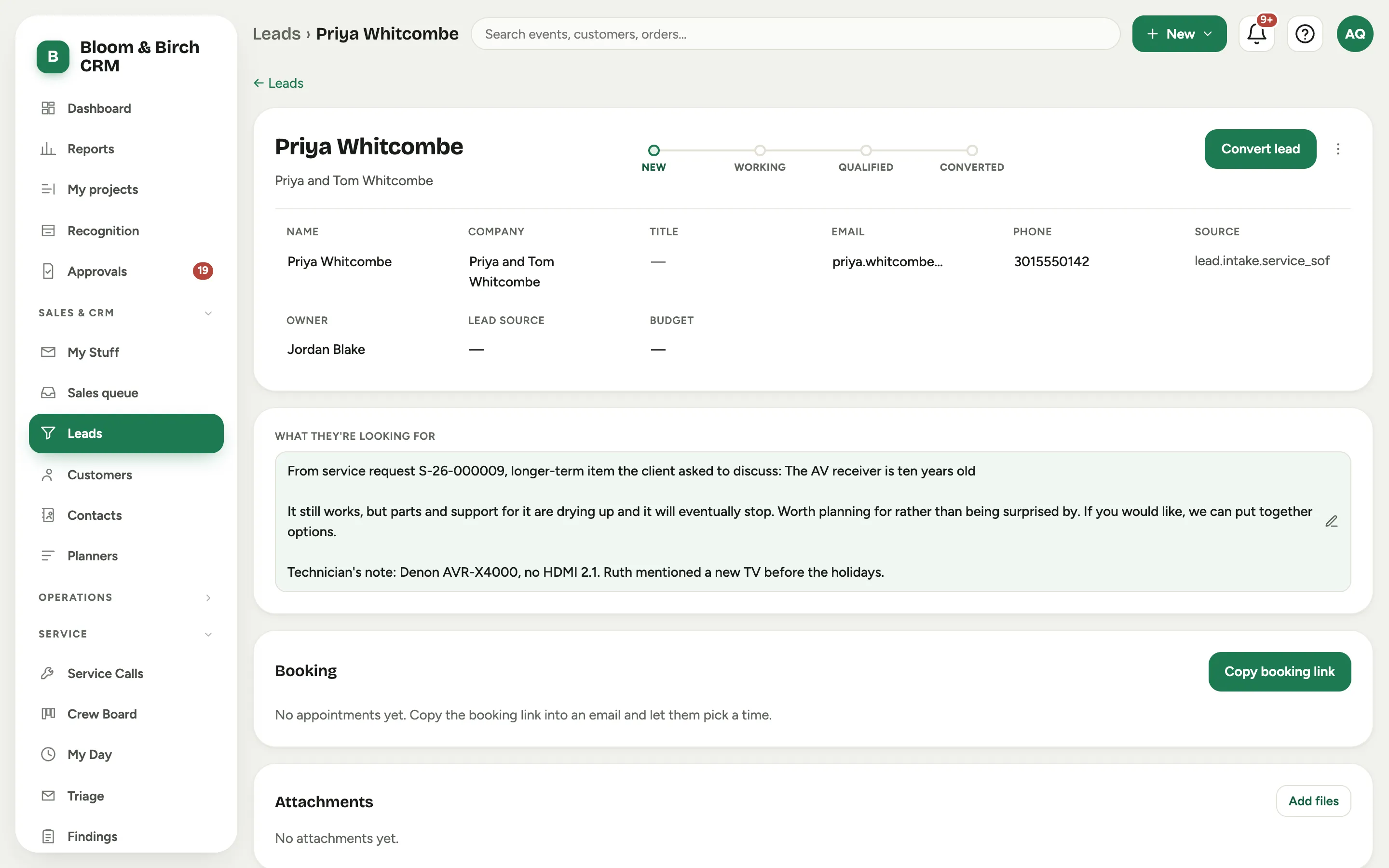 Screenshot from a demo workspace; data illustrative.
The settings
Under Admin, then Service, the Summary of Findings card holds everything that drives the feature:
- New calls default to: Summary of Findings or Time and materials.
- Diagnostic fee, residential and Diagnostic fee, commercial: the two amounts the office chooses between at booking.
- Credit the fee against approved work by default: off means the fee is charged on top of any approved work. It can be changed per call in the builder.
- Findings labor rate: the rate Add hours uses in the build-up. It is separate from the time-and-materials bill rate.
- Prices honored for, Follow up every and Client page stays live after close for: the validity period, the follow-up cadence, and how long the customer’s page stays up after the call closes.
- Terms the client agrees to at approval: the legal document the customer agrees to when they approve. Choose a service document, or No terms step to skip it.
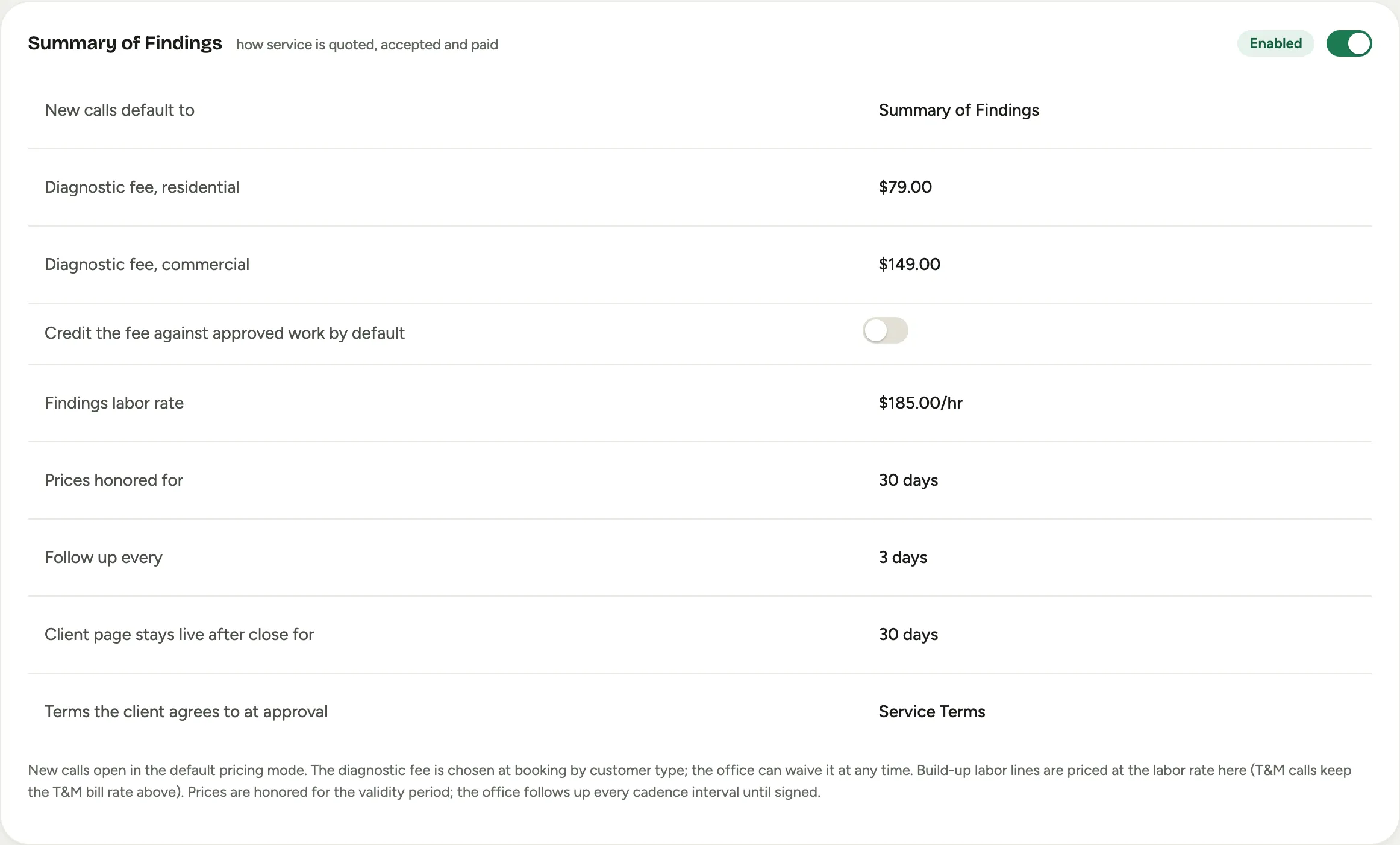 Screenshot from a demo workspace; data illustrative.
To set the terms, click the current value, pick the document, and choose Apply. The customer then sees the line “I approve the work I have chosen at the prices shown and agree to your service terms”, with the terms one tap away, on every approval.
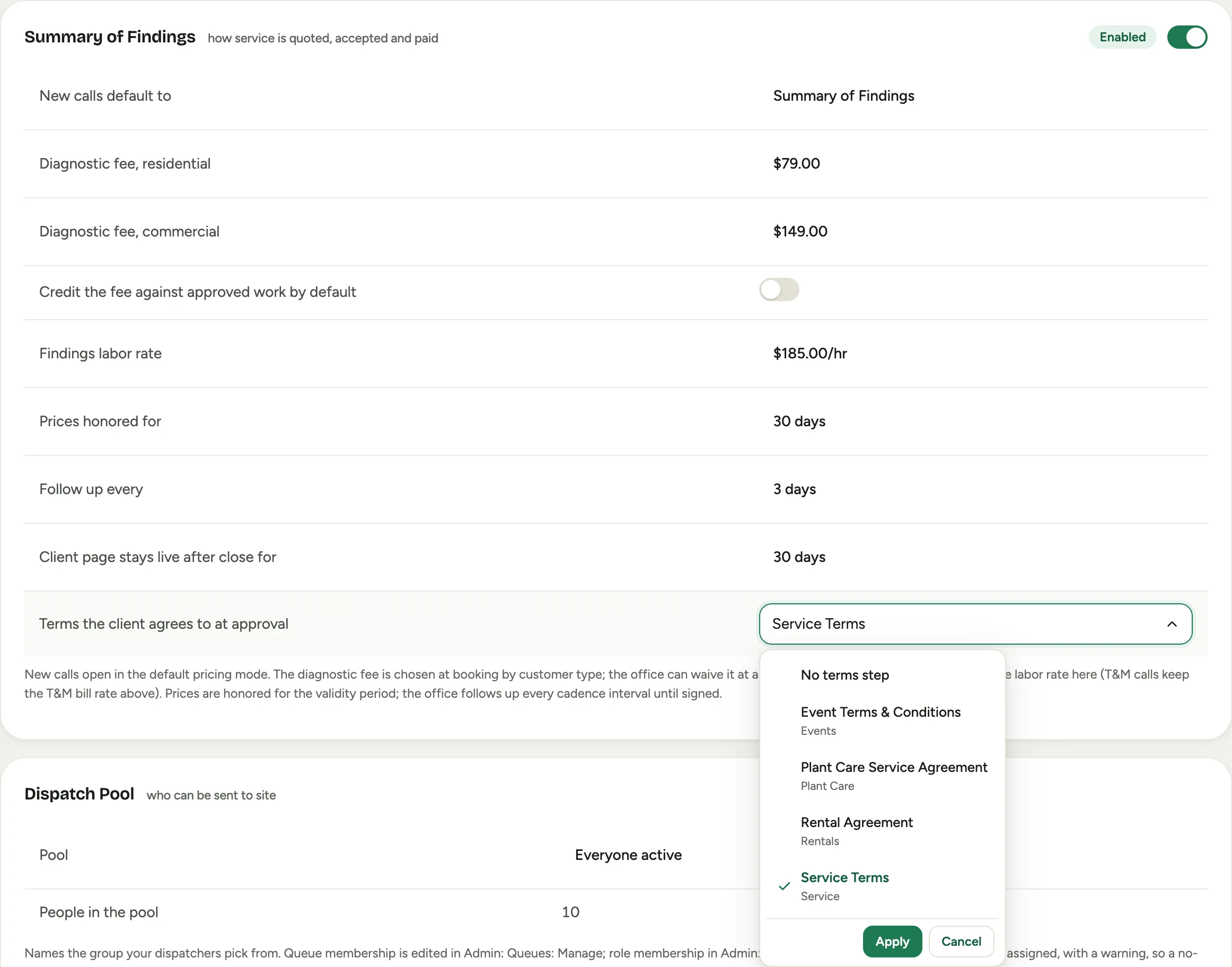 Screenshot from a demo workspace; data illustrative.
Good to know
- A call in Summary of Findings pricing bills the agreed amount, never hours and parts at price. The technician’s hours and the parts used feed the cost side only.
- Approving a second finding a week after the first is a second acceptance record, never an edit to the first, so “what did they agree to” always has an answer.
- The receipt email is the customer’s invoice document. It shows one number per finding, the diagnostic visit, the tax and the card.
- Money is taken at approval and the revenue is recognized when the call closes. Ask your accountant before turning on the books integration for service calls.